> ## Documentation Index
> Fetch the complete documentation index at: https://support.quo.com/llms.txt
> Use this file to discover all available pages before exploring further.
# AI call tags
> Automatically categorize and organize calls with AI-powered tagging based on conversation content
## Overview
AI call tagging automatically categorizes calls based on conversation content, helping you organize and surface important conversations. Combined with call views, AI tags help you quickly find calls requiring attention - such as scheduling requests, escalations, or customer issues - providing powerful insights into your team's conversations.
AI call tags are available on Scale plans and require call recording and transcription to be enabled.
## Prerequisites
### Plan and permissions requirements
**Required plan features:**
* **Scale plan subscription**
* **Owner or Admin permissions** for workspace or specific inbox
* **Call summaries and transcriptions enabled**
* **Automatic call recording enabled** (strongly recommended)
Without automatic call recording, calls must be manually recorded to be transcribed and tagged by AI.
### Platform availability
**Supported platforms:**
* **Web app**: Full setup and management capabilities
* **Desktop app**: Complete feature access (Windows and macOS)
* **iOS**: View tags and filter calls
* **Android**: View tags and filter calls
AI call tag setup is only available on web and desktop applications.
## Setting up AI call tags
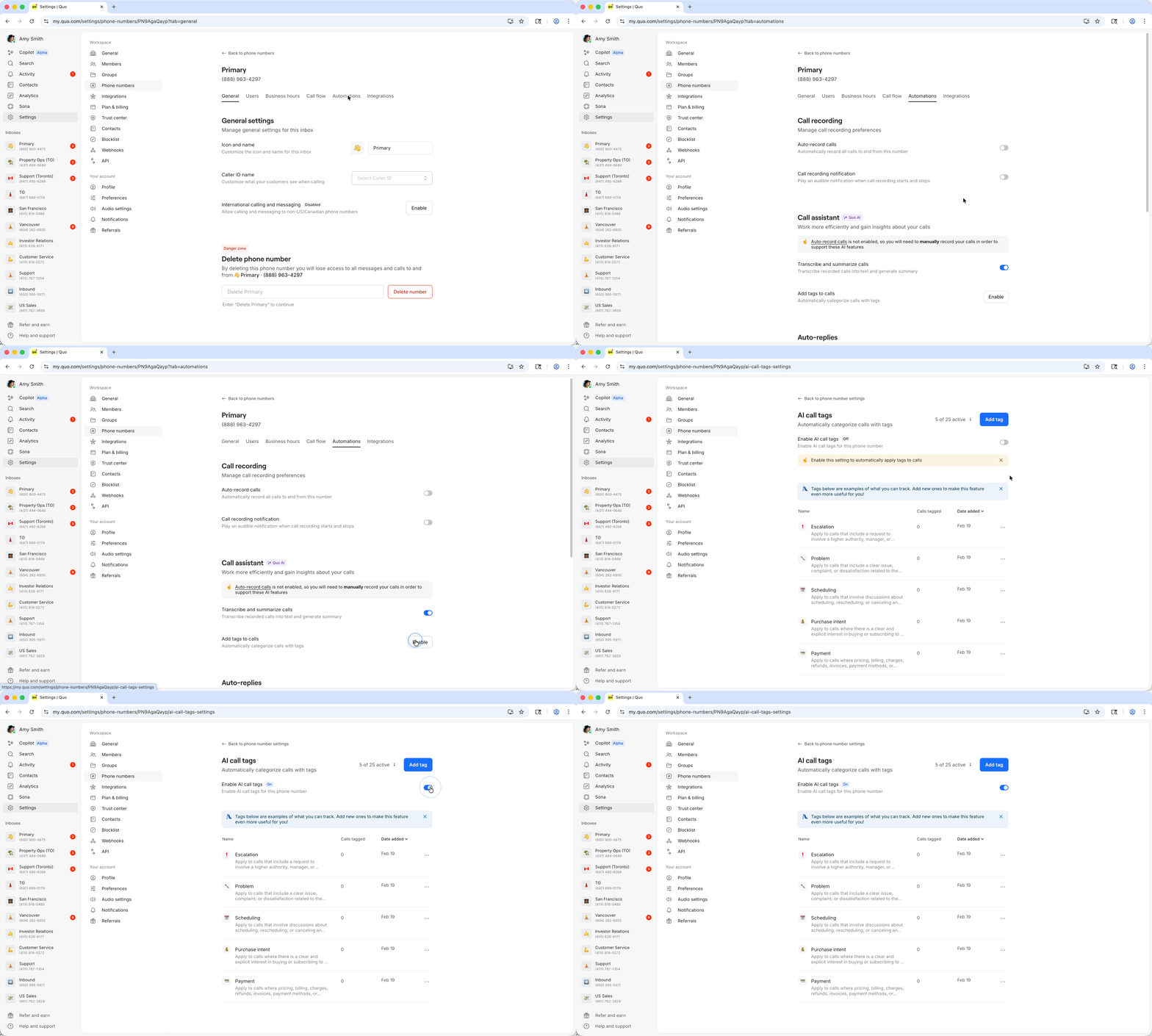
### Enabling the feature
1. Click **Settings** in the left-hand menu
2. Select **Phone Numbers** under Workspace settings
3. **Choose the specific phone number** you want to configure
4. Click **Automations**
5. Scroll to the **Call assistant section**
6. Find **Add tags to calls**, Click **Enable**
7. Toggle on **Enable AI call tags** on the next page
 ### Creating custom tags
**Default tags:** Quo, formerly OpenPhone, provides predefined tags to get you started. You can edit, disable, or delete these at any time.
**Adding new tags:**
1. Go to **Settings** → **Phone Numbers**
2. **Choose the phone number** you want to configure
3. Click **Automations**
4. Scroll to the **Call assistant section**
5. Find **Add tags to calls**, Click **Manage**
6. **Click "Add Tag"**
* **Name your tag** (up to 40 characters)
* **Add optional description** (up to 500 characters) to help AI apply your tags
### Creating custom tags
**Default tags:** Quo, formerly OpenPhone, provides predefined tags to get you started. You can edit, disable, or delete these at any time.
**Adding new tags:**
1. Go to **Settings** → **Phone Numbers**
2. **Choose the phone number** you want to configure
3. Click **Automations**
4. Scroll to the **Call assistant section**
5. Find **Add tags to calls**, Click **Manage**
6. **Click "Add Tag"**
* **Name your tag** (up to 40 characters)
* **Add optional description** (up to 500 characters) to help AI apply your tags
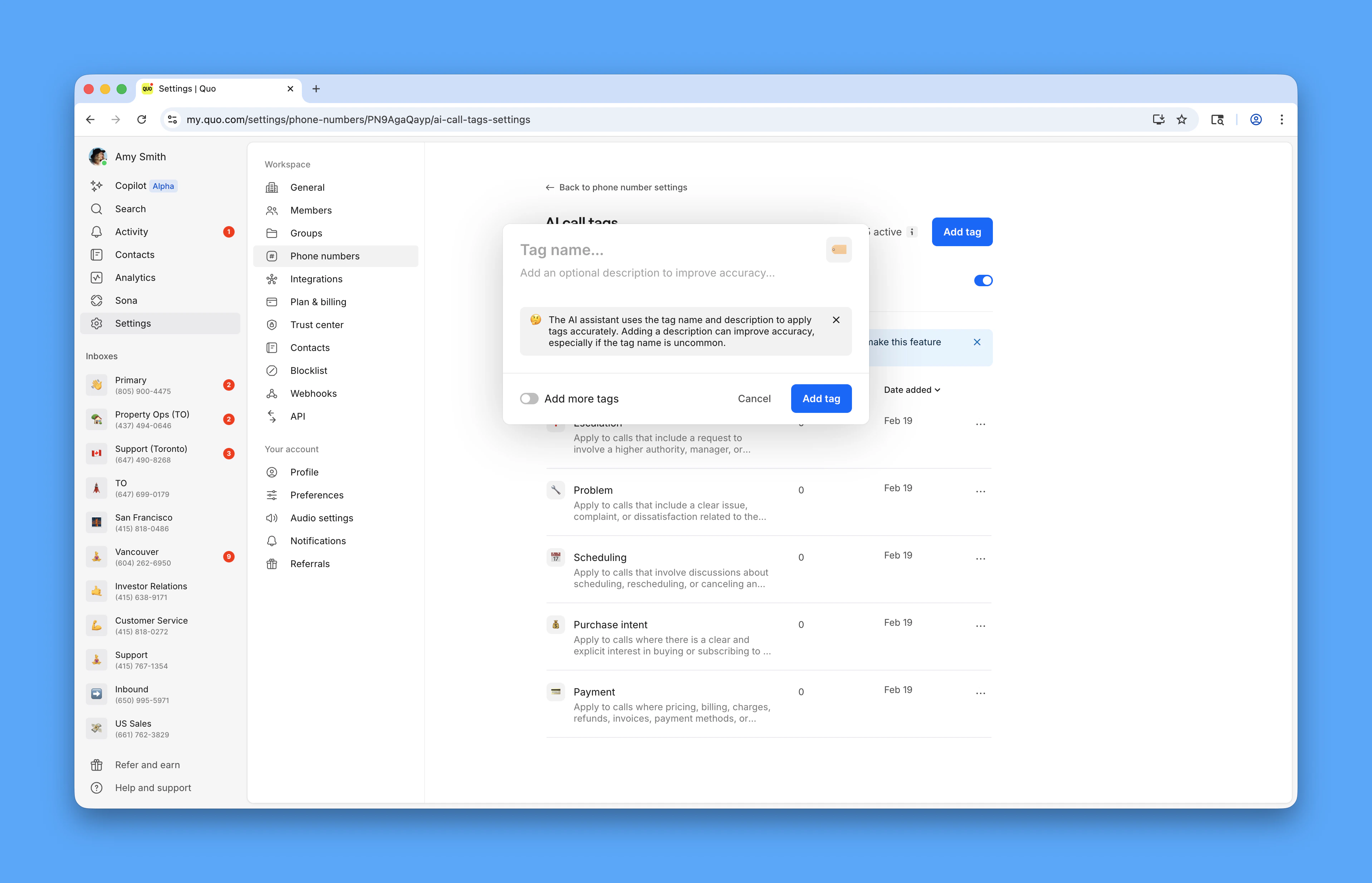 Tag descriptions help AI understand when to apply tags. Include specific keywords or scenarios you want the AI to recognize. You can update descriptions anytime.
### Tag limits and specifications
**Tag constraints:**
* **Up to 25 active tags** per inbox
* **Tag names**: Maximum 40 characters
* **Tag descriptions**: Maximum 500 characters
* **Scope**: Tags are specific to the inbox where they're created
## How AI tagging works
### Automatic tag application
**AI processing:**
* AI analyzes call transcripts after each call ends
* Uses tag name, description, and conversation content to determine relevance
* Automatically applies appropriate tags to calls
* Tags appear on calls within minutes of completion
Tag descriptions help AI understand when to apply tags. Include specific keywords or scenarios you want the AI to recognize. You can update descriptions anytime.
### Tag limits and specifications
**Tag constraints:**
* **Up to 25 active tags** per inbox
* **Tag names**: Maximum 40 characters
* **Tag descriptions**: Maximum 500 characters
* **Scope**: Tags are specific to the inbox where they're created
## How AI tagging works
### Automatic tag application
**AI processing:**
* AI analyzes call transcripts after each call ends
* Uses tag name, description, and conversation content to determine relevance
* Automatically applies appropriate tags to calls
* Tags appear on calls within minutes of completion
 ### Managing applied tags
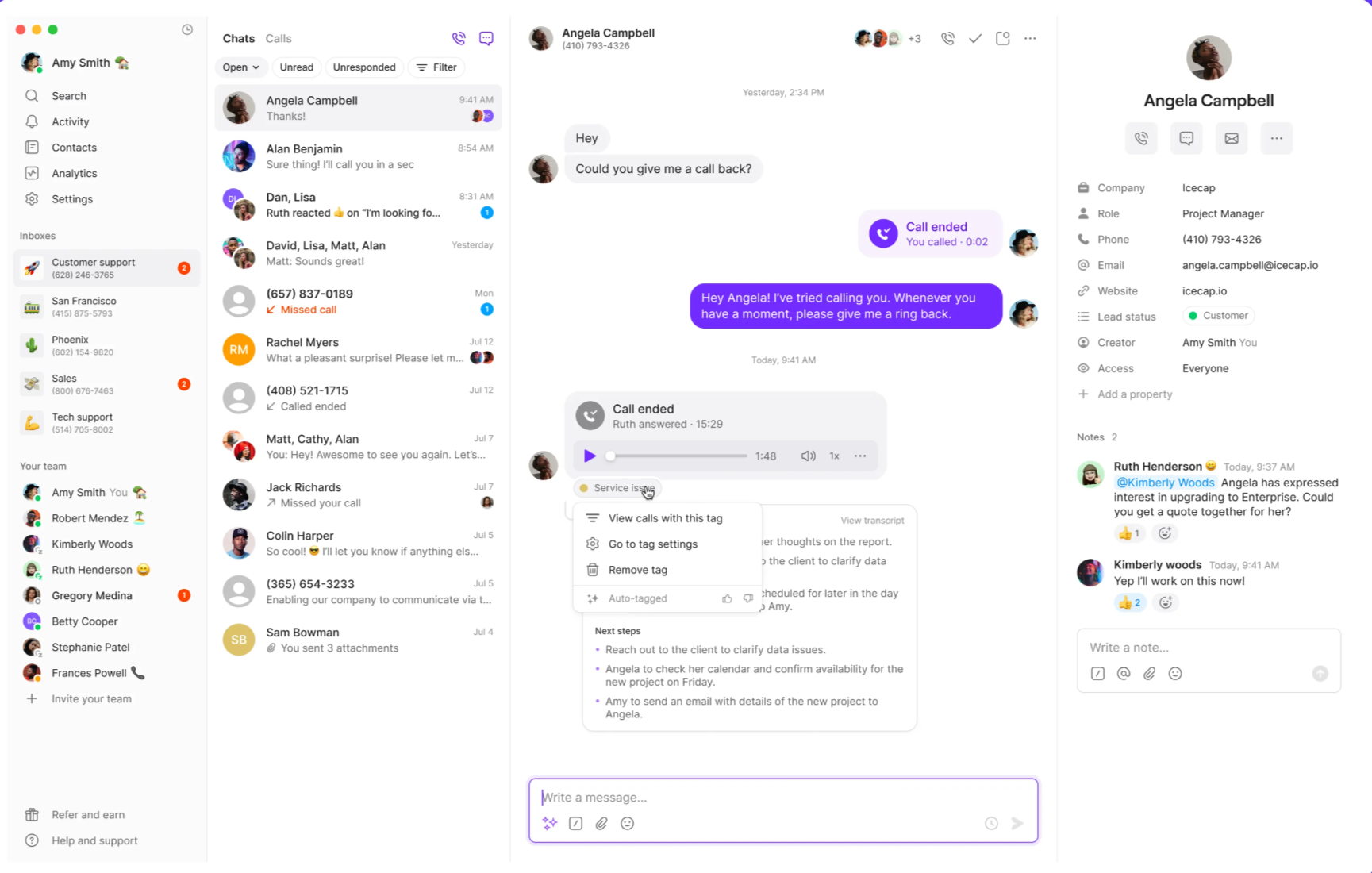
**Removing tags:**
1. **Click the tag** on a call
2. Select **Remove tag**
Tags can only be applied automatically by AI. Once removed from a call, they cannot be manually re-added.
**Tag status management:**
* **Active tags**: Applied to relevant new calls
* **Disabled tags**: Stop applying to new calls but remain on past calls
* **Deleted tags**: Removed from all calls (past and future)
## Using tags for call organization
### Filtering calls by tags
1. **Click any tag** on a call
2. Select **View calls with this tag**
3. Review filtered call list
### Managing applied tags
**Removing tags:**
1. **Click the tag** on a call
2. Select **Remove tag**
Tags can only be applied automatically by AI. Once removed from a call, they cannot be manually re-added.
**Tag status management:**
* **Active tags**: Applied to relevant new calls
* **Disabled tags**: Stop applying to new calls but remain on past calls
* **Deleted tags**: Removed from all calls (past and future)
## Using tags for call organization
### Filtering calls by tags
1. **Click any tag** on a call
2. Select **View calls with this tag**
3. Review filtered call list
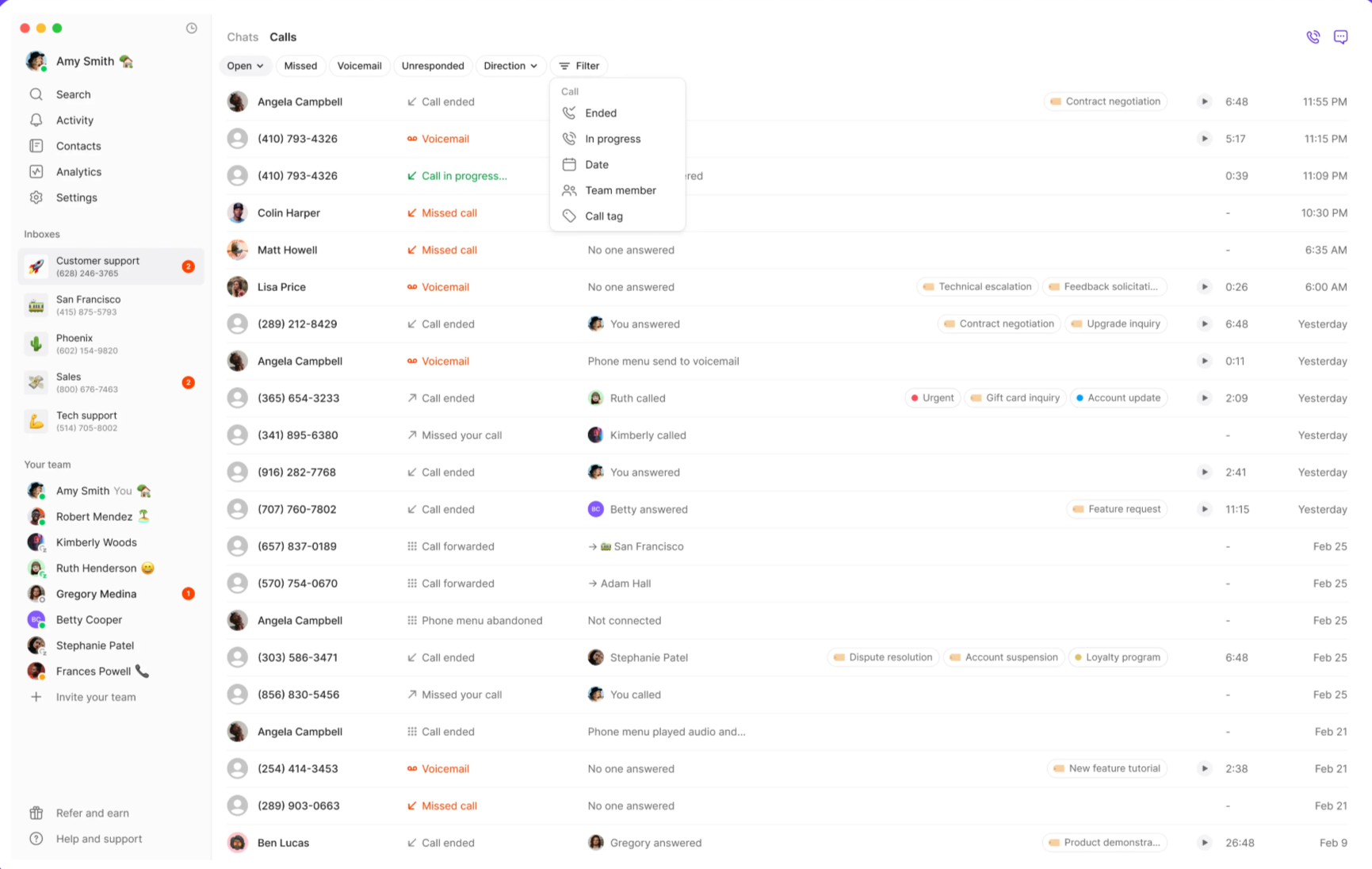 1. Navigate to **Calls view** in your inbox
2. **Use filter options** to select specific tags
3. **Apply filters** to view tagged calls
### Call organization strategies
**Common tag categories:**
* **Priority**: "urgent", "follow-up-needed", "escalation"
* **Topic**: "billing", "support", "sales", "scheduling"
* **Outcome**: "appointment-set", "complaint", "compliment"
* **Action required**: "callback-requested", "quote-needed", "demo-scheduled"
## Best practices for AI call tags
### Effective tag creation
**Naming conventions:**
* Use clear, descriptive names that reflect conversation content
* Be consistent with naming patterns across your organization
* Consider how team members will search for and recognize tags
**Description optimization:**
* Include specific keywords that indicate when tags should apply
* Provide context about conversation scenarios
* Update descriptions based on AI tagging accuracy
## Limitations and considerations
### Current limitations
**Feature restrictions:**
* Tags cannot be manually added to calls
* Tags are inbox-specific (cannot share across inboxes)
* Only calls can be tagged (not messages or conversations)
* Tags cannot be used in Analytics filtering
* No API, integration, or webhook access for tags
**Tagging scope:**
* Tags only apply to calls made after tag creation or enablement
* Disabled tags stop applying to new calls but remain on existing calls
* Deleted tags are removed from all calls permanently
## FAQs
Verify that call recording and transcription are enabled for your phone number. AI tags require call transcripts to analyze conversation content.
Review and refine tag descriptions to provide more specific guidance to the AI. Include keywords and scenarios that better define when tags should apply.
Check that you haven't reached the 25-tag limit per inbox and that you have Owner or Admin permissions for the workspace or specific inbox.
Ensure you're viewing the correct inbox where tags were created. Tags are inbox-specific and don't appear across different phone numbers.
Once a tag is removed from a call, it cannot be re-added manually. If it reappears, contact support as this shouldn't happen under normal operation.
1. Navigate to **Calls view** in your inbox
2. **Use filter options** to select specific tags
3. **Apply filters** to view tagged calls
### Call organization strategies
**Common tag categories:**
* **Priority**: "urgent", "follow-up-needed", "escalation"
* **Topic**: "billing", "support", "sales", "scheduling"
* **Outcome**: "appointment-set", "complaint", "compliment"
* **Action required**: "callback-requested", "quote-needed", "demo-scheduled"
## Best practices for AI call tags
### Effective tag creation
**Naming conventions:**
* Use clear, descriptive names that reflect conversation content
* Be consistent with naming patterns across your organization
* Consider how team members will search for and recognize tags
**Description optimization:**
* Include specific keywords that indicate when tags should apply
* Provide context about conversation scenarios
* Update descriptions based on AI tagging accuracy
## Limitations and considerations
### Current limitations
**Feature restrictions:**
* Tags cannot be manually added to calls
* Tags are inbox-specific (cannot share across inboxes)
* Only calls can be tagged (not messages or conversations)
* Tags cannot be used in Analytics filtering
* No API, integration, or webhook access for tags
**Tagging scope:**
* Tags only apply to calls made after tag creation or enablement
* Disabled tags stop applying to new calls but remain on existing calls
* Deleted tags are removed from all calls permanently
## FAQs
Verify that call recording and transcription are enabled for your phone number. AI tags require call transcripts to analyze conversation content.
Review and refine tag descriptions to provide more specific guidance to the AI. Include keywords and scenarios that better define when tags should apply.
Check that you haven't reached the 25-tag limit per inbox and that you have Owner or Admin permissions for the workspace or specific inbox.
Ensure you're viewing the correct inbox where tags were created. Tags are inbox-specific and don't appear across different phone numbers.
Once a tag is removed from a call, it cannot be re-added manually. If it reappears, contact support as this shouldn't happen under normal operation.