> ## Documentation Index
> Fetch the complete documentation index at: https://support.quo.com/llms.txt
> Use this file to discover all available pages before exploring further.
# Play audio
> Share recorded messages, announcements, and information with callers at any point in your call flow
## Overview
The play audio feature lets you share pre-recorded messages with callers without requiring team member interaction. Whether you need to announce holiday hours, provide frequently requested information, or deliver important updates, audio messages ensure consistent, professional communication 24/7.
## Understanding play audio
### How it works
Play audio is a call flow step that:
1. Plays your custom message to the caller
2. Waits for the entire message to complete
3. Continues to the next step in your flow (or ends the call)
### Common use cases
* **Holiday announcements**: Inform about special closures
* **Temporary changes**: Share schedule modifications
* **Business information**: Provide hours, location, directions
* **FAQ responses**: Answer common questions automatically
* **Emergency notifications**: Communicate urgent updates
* **Welcome messages**: Greet callers before routing
## Setting up play audio
### Add to your call flow
1. Open the call flow builder
2. Drag **Play audio** step into your canvas
3. Place it strategically:
* After incoming call (greeting)
* As phone menu option (information)
* After ring users (if no answer)
* In after-hours path (announcements)
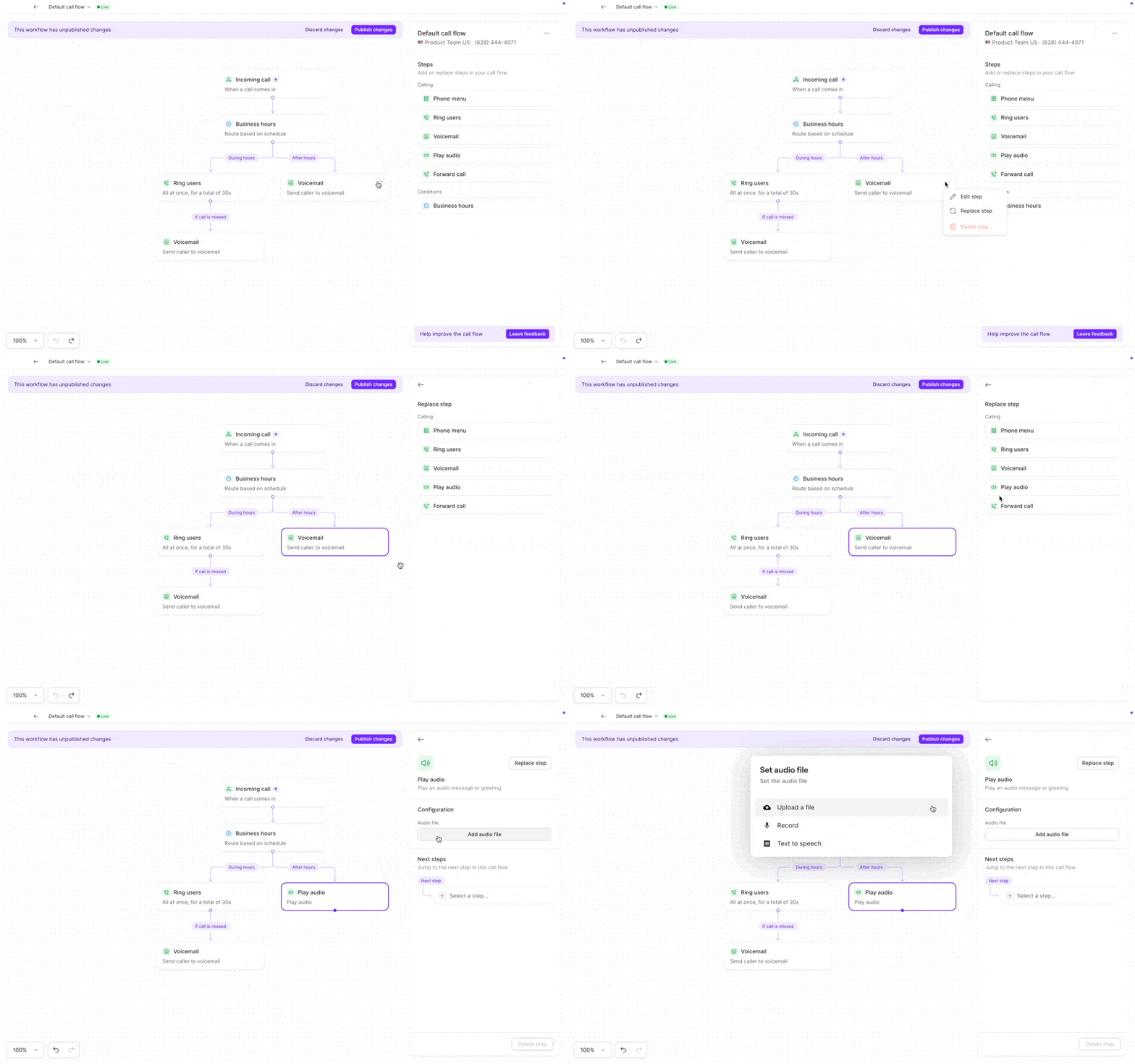 ### Configure your audio
Select the play audio step and choose your method:
#### Upload a file
1. Select **Upload a file**
* **Supported formats:** MP3, WAV
2. Drag and drop your MP3 or WAV file
* Professional pre-recorded messages
* Music or sound effects
* Previously recorded message
3. Click **Save**
#### Record in Quo
1. Click **Record** button
2. Use your computer microphone
3. Use the **Play button** to preview your recording
4. Re-record if needed
5. Click **Save**
#### Text to speech
4. Select **Text-to-Speech**
5. Choose from the available voice options:
* **4 natural voices** — newer, high-quality options
* **1 legacy text-to-speech voice** — the original TTS option
6. Click **Generate** to create your greeting
7. Use the **Play button** to preview your greeting
8. Click **Save**
Text to speech is perfect for messages that change frequently, like holiday schedules or temporary announcements. For natural-sounding text-to-speech messages, see our [guide on using enhanced text to speech](https://support.quo.com/core-concepts/administration/call-flows/guides/text-to-speech-guide).
## Common message templates
### Holiday closure
[*"Thank you for calling \[Business Name\]. We are closed for \[Holiday\] and will reopen on \[Date\]. For urgent matters, please email emergency@example.com. Happy holidays!"*](mailto:emergency@example.com)
### Temporary hours
*"Welcome to \[Business Name]. Please note our temporary hours: \[New Schedule]. We apologize for any inconvenience and look forward to serving you."*
### Service interruption
[*"We're currently experiencing technical difficulties with our \[Service\]. Our team is working to resolve this issue. Please call back in \[Timeframe\] or email support@example.com."*](mailto:support@example.com)
### Location moved
*"\[Business Name] has moved! Find us at our new location: \[Address]. Our phone number and hours remain the same. We look forward to seeing you."*
### Frequently asked information
*"Our current promotion offers 20% off all services through \[Date]. No appointment necessary. Visit our website for complete details and exclusions."*
## FAQs
Quo supports MP3 and WAV files for uploaded audio. For best results, use MP3 format with standard bitrates (128-192 kbps).
While there's no strict limit, best practice is keeping messages under 60 seconds. Callers may hang up if messages are too long.
Yes, but ensure you have rights to use any music. Keep volume low so the message remains clear. Consider royalty-free options.
Use text-to-speech for messages that change frequently. You can update the text and republish your call flow in seconds.
Yes, each phone number has its own call flow, so you can customize play audio messages for each number independently.
You decide! Configure the next step: end the call, route to voicemail, return to menu, or continue to another action.
Yes, add multiple play audio steps in a row. However, consider caller patience—too many messages may cause hang-ups.
No, play audio steps only work for incoming calls within your call flow. Outbound calls connect directly.
### Configure your audio
Select the play audio step and choose your method:
#### Upload a file
1. Select **Upload a file**
* **Supported formats:** MP3, WAV
2. Drag and drop your MP3 or WAV file
* Professional pre-recorded messages
* Music or sound effects
* Previously recorded message
3. Click **Save**
#### Record in Quo
1. Click **Record** button
2. Use your computer microphone
3. Use the **Play button** to preview your recording
4. Re-record if needed
5. Click **Save**
#### Text to speech
4. Select **Text-to-Speech**
5. Choose from the available voice options:
* **4 natural voices** — newer, high-quality options
* **1 legacy text-to-speech voice** — the original TTS option
6. Click **Generate** to create your greeting
7. Use the **Play button** to preview your greeting
8. Click **Save**
Text to speech is perfect for messages that change frequently, like holiday schedules or temporary announcements. For natural-sounding text-to-speech messages, see our [guide on using enhanced text to speech](https://support.quo.com/core-concepts/administration/call-flows/guides/text-to-speech-guide).
## Common message templates
### Holiday closure
[*"Thank you for calling \[Business Name\]. We are closed for \[Holiday\] and will reopen on \[Date\]. For urgent matters, please email emergency@example.com. Happy holidays!"*](mailto:emergency@example.com)
### Temporary hours
*"Welcome to \[Business Name]. Please note our temporary hours: \[New Schedule]. We apologize for any inconvenience and look forward to serving you."*
### Service interruption
[*"We're currently experiencing technical difficulties with our \[Service\]. Our team is working to resolve this issue. Please call back in \[Timeframe\] or email support@example.com."*](mailto:support@example.com)
### Location moved
*"\[Business Name] has moved! Find us at our new location: \[Address]. Our phone number and hours remain the same. We look forward to seeing you."*
### Frequently asked information
*"Our current promotion offers 20% off all services through \[Date]. No appointment necessary. Visit our website for complete details and exclusions."*
## FAQs
Quo supports MP3 and WAV files for uploaded audio. For best results, use MP3 format with standard bitrates (128-192 kbps).
While there's no strict limit, best practice is keeping messages under 60 seconds. Callers may hang up if messages are too long.
Yes, but ensure you have rights to use any music. Keep volume low so the message remains clear. Consider royalty-free options.
Use text-to-speech for messages that change frequently. You can update the text and republish your call flow in seconds.
Yes, each phone number has its own call flow, so you can customize play audio messages for each number independently.
You decide! Configure the next step: end the call, route to voicemail, return to menu, or continue to another action.
Yes, add multiple play audio steps in a row. However, consider caller patience—too many messages may cause hang-ups.
No, play audio steps only work for incoming calls within your call flow. Outbound calls connect directly.