> ## Documentation Index
> Fetch the complete documentation index at: https://support.quo.com/llms.txt
> Use this file to discover all available pages before exploring further.
# Phone menu (IVR)
> Create interactive voice menus to route callers to the right department, person, or information automatically
## Overview
Phone menus (IVR - Interactive Voice Response) transform your single business number into a sophisticated call routing system. Callers hear professional greetings and navigate to their desired destination using keypad selections or voice commands—just like calling a large enterprise, but achievable for any size business.
This feature is only available on [Business and Scale](https://support.quo.com/core-concepts/administration/billing/pricing#plan-comparison) plans.
Access interactive demos, videos, and more in the Quo Academy. Explore key features and practice building call flows at your own pace.
***
## Understanding phone menus
**What callers experience**
When someone calls your number when you have a phone menu:
1. They'll hear a custom greeting message you've recorded or uploaded
2. They'll hear a series of menu options ("Press 1 for Sales, 2 for Support...")
3. They make their selection via keypad or voice
4. They're immediately and automatically routed to the right destination
**Benefits for your business**
* **Professional image**: Makes you sound like a larger organization
* **Efficient routing**: It gets callers to the right person faster
* **Reduced interruptions**: It filters out spam and robocalls, which don't usually know what to do when faced with a phone menu
* **Self-service options**: You can help people get the information they need without staff needing to pick up the phone
* **Scalability**: You can handle more calls without more staff or complexity
Phone menus are available on Business and Scale plans. Starter plan users can upgrade to access this feature.
## Setting up your phone menu
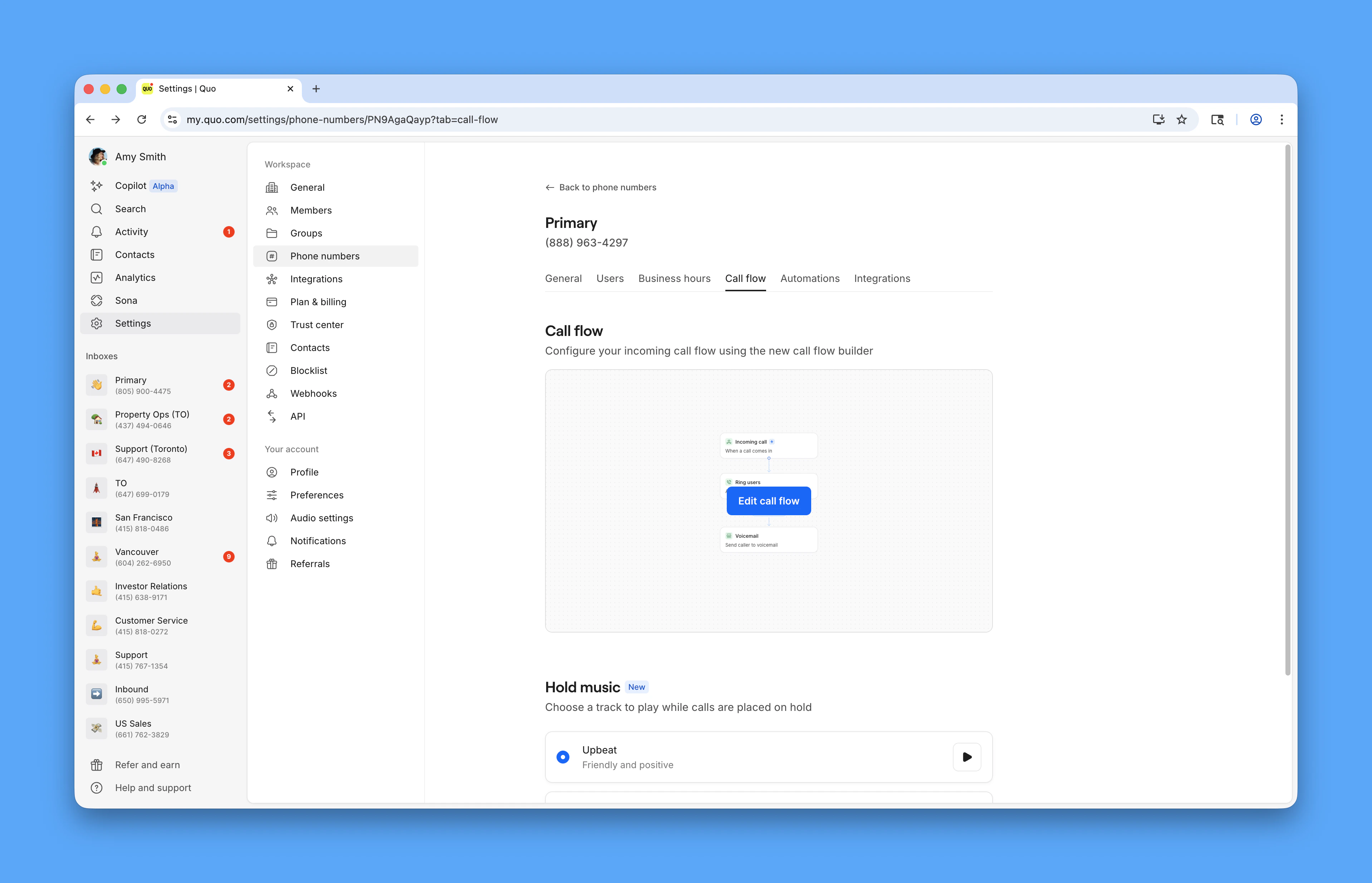
**Access the call flow builder**
1. Open Quo, formerly OpenPhone, on web or desktop
2. Navigate to **Settings** → **Phone numbers**
3. Select the number to configure
4. Click **Edit call flow** under Call flow section
 **Add phone menu to your flow**
1. Drag **Phone menu** step into the canvas
2. Place it after:
* **Incoming call** trigger (for all calls)
* **Business hours** condition (for time-based menus)
3. Select the step to configure settings
## Configuring menu options
### Create your greeting
Click **Add greeting message** and choose:
* **Upload a file**: Use existing audio (MP3/WAV)
* **Record**: Create greeting directly in Quo
* [Text to speech](https://support.quo.com/core-concepts/administration/call-flows/guides/text-to-speech-guide): Type text for professional voiceover
Example greeting: *"Thank you for calling Acme Inc. For Sales, press 1. For Support, press 2. For our business hours and location, press 3. To speak with an operator, press 0."*
### Set up menu options
1. Click **Add keypad option**
2. Assign numbers 0-9 to destinations
3. Add voice keywords for each option
4. Configure up to 10 different paths
**Add phone menu to your flow**
1. Drag **Phone menu** step into the canvas
2. Place it after:
* **Incoming call** trigger (for all calls)
* **Business hours** condition (for time-based menus)
3. Select the step to configure settings
## Configuring menu options
### Create your greeting
Click **Add greeting message** and choose:
* **Upload a file**: Use existing audio (MP3/WAV)
* **Record**: Create greeting directly in Quo
* [Text to speech](https://support.quo.com/core-concepts/administration/call-flows/guides/text-to-speech-guide): Type text for professional voiceover
Example greeting: *"Thank you for calling Acme Inc. For Sales, press 1. For Support, press 2. For our business hours and location, press 3. To speak with an operator, press 0."*
### Set up menu options
1. Click **Add keypad option**
2. Assign numbers 0-9 to destinations
3. Add voice keywords for each option
4. Configure up to 10 different paths
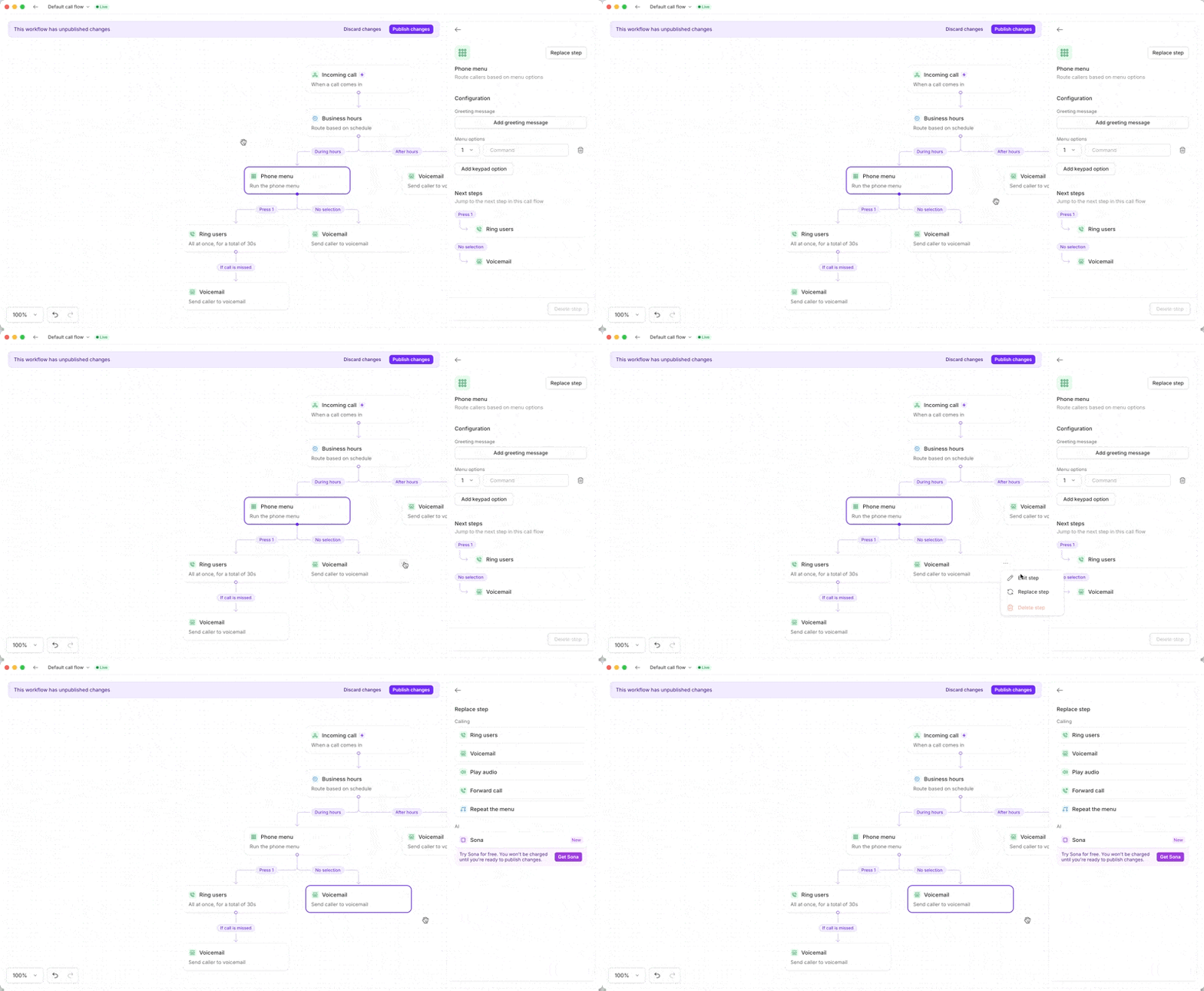 ### Available destinations
Each menu option can route to:
* [**Ring users**](https://support.quo.com/core-concepts/administration/call-flows/guides/home-services-call-flows#reduce-missed-calls-with-ring-groups): Connect to team members
* [**Voicemail**](https://support.quo.com/core-concepts/administration/call-flows/voicemail): Direct to specific voicemail box
* [**Play audio**](https://support.quo.com/core-concepts/administration/call-flows/play-audio): Share recorded information
* [**Forward call**](https://support.quo.com/core-concepts/administration/call-flows/call-forwarding): Route to external numbers
* [**Another phone menu**](https://support.quo.com/core-concepts/administration/call-flows/phone-menu#multi-level-menus): Create multi-level menus
* [**Sona AI agent**](https://support.quo.com/core-concepts/ai-automations/overview#sona-ai-agent): Let AI handle the call
### Handle no selection
Configure what happens if callers don't make a selection:
* Default: Routes to voicemail
* Alternative options: Ring users, repeat menu, or forward
## Multi-level menus
**See it step-by-step:** Walk through a multi-level phone menu example in [the Quo Academy](https://learn.quo.com/setting-up-quo/routing-calls-with-the-call-flow-builder/call-flow-examples?utm_source=support\&utm_medium=help_center\&utm_campaign=quo_academy\&utm_content=call_flow_builder_article).
Create sophisticated menu trees for larger organizations, like in this (unsophisticated) drawing:
```text theme={null}
Main Menu
├── 1. Sales
│ ├── 1. New customers
│ ├── 2. Existing accounts
│ └── 3. Partner inquiries
├── 2. Support
│ ├── 1. Technical issues
│ ├── 2. Billing questions
│ └── 3. Account help
└── 3. Company info
```
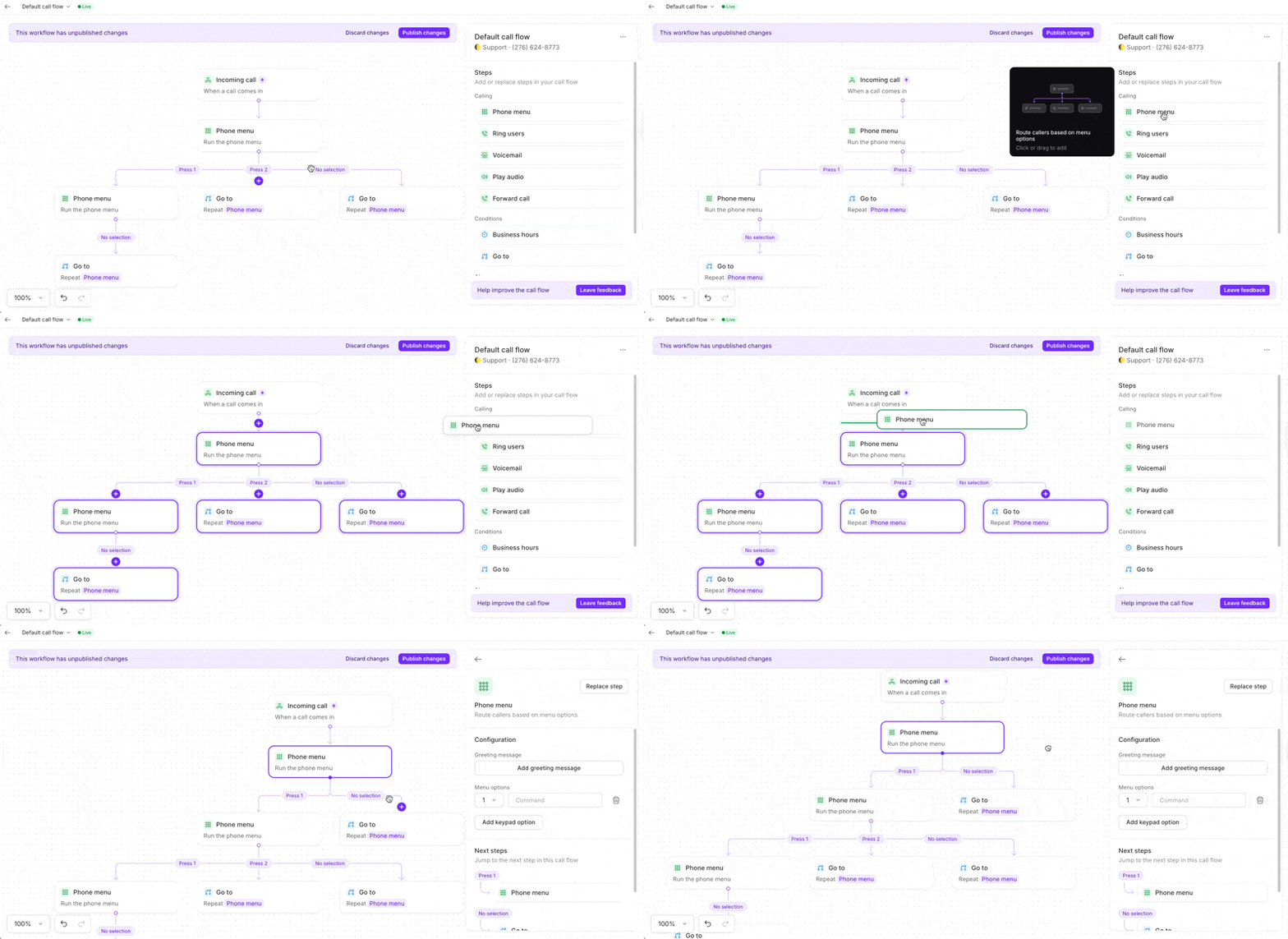
### **How to set up a multi-level phone menu**
To add a multi-level phone menu to your call flow:
1. **In the call flow builder,** drag in the `Phone menu` step from the side panel.
2. Add your first-level options (0–9).
3. To nest a menu, drag an additional **Phone menu** step under one of your first-level phone menu options.
As shown below, you can repeat this process to add additional layers.
### Available destinations
Each menu option can route to:
* [**Ring users**](https://support.quo.com/core-concepts/administration/call-flows/guides/home-services-call-flows#reduce-missed-calls-with-ring-groups): Connect to team members
* [**Voicemail**](https://support.quo.com/core-concepts/administration/call-flows/voicemail): Direct to specific voicemail box
* [**Play audio**](https://support.quo.com/core-concepts/administration/call-flows/play-audio): Share recorded information
* [**Forward call**](https://support.quo.com/core-concepts/administration/call-flows/call-forwarding): Route to external numbers
* [**Another phone menu**](https://support.quo.com/core-concepts/administration/call-flows/phone-menu#multi-level-menus): Create multi-level menus
* [**Sona AI agent**](https://support.quo.com/core-concepts/ai-automations/overview#sona-ai-agent): Let AI handle the call
### Handle no selection
Configure what happens if callers don't make a selection:
* Default: Routes to voicemail
* Alternative options: Ring users, repeat menu, or forward
## Multi-level menus
**See it step-by-step:** Walk through a multi-level phone menu example in [the Quo Academy](https://learn.quo.com/setting-up-quo/routing-calls-with-the-call-flow-builder/call-flow-examples?utm_source=support\&utm_medium=help_center\&utm_campaign=quo_academy\&utm_content=call_flow_builder_article).
Create sophisticated menu trees for larger organizations, like in this (unsophisticated) drawing:
```text theme={null}
Main Menu
├── 1. Sales
│ ├── 1. New customers
│ ├── 2. Existing accounts
│ └── 3. Partner inquiries
├── 2. Support
│ ├── 1. Technical issues
│ ├── 2. Billing questions
│ └── 3. Account help
└── 3. Company info
```
### **How to set up a multi-level phone menu**
To add a multi-level phone menu to your call flow:
1. **In the call flow builder,** drag in the `Phone menu` step from the side panel.
2. Add your first-level options (0–9).
3. To nest a menu, drag an additional **Phone menu** step under one of your first-level phone menu options.
As shown below, you can repeat this process to add additional layers.
 ### **Call flow builder routing options**
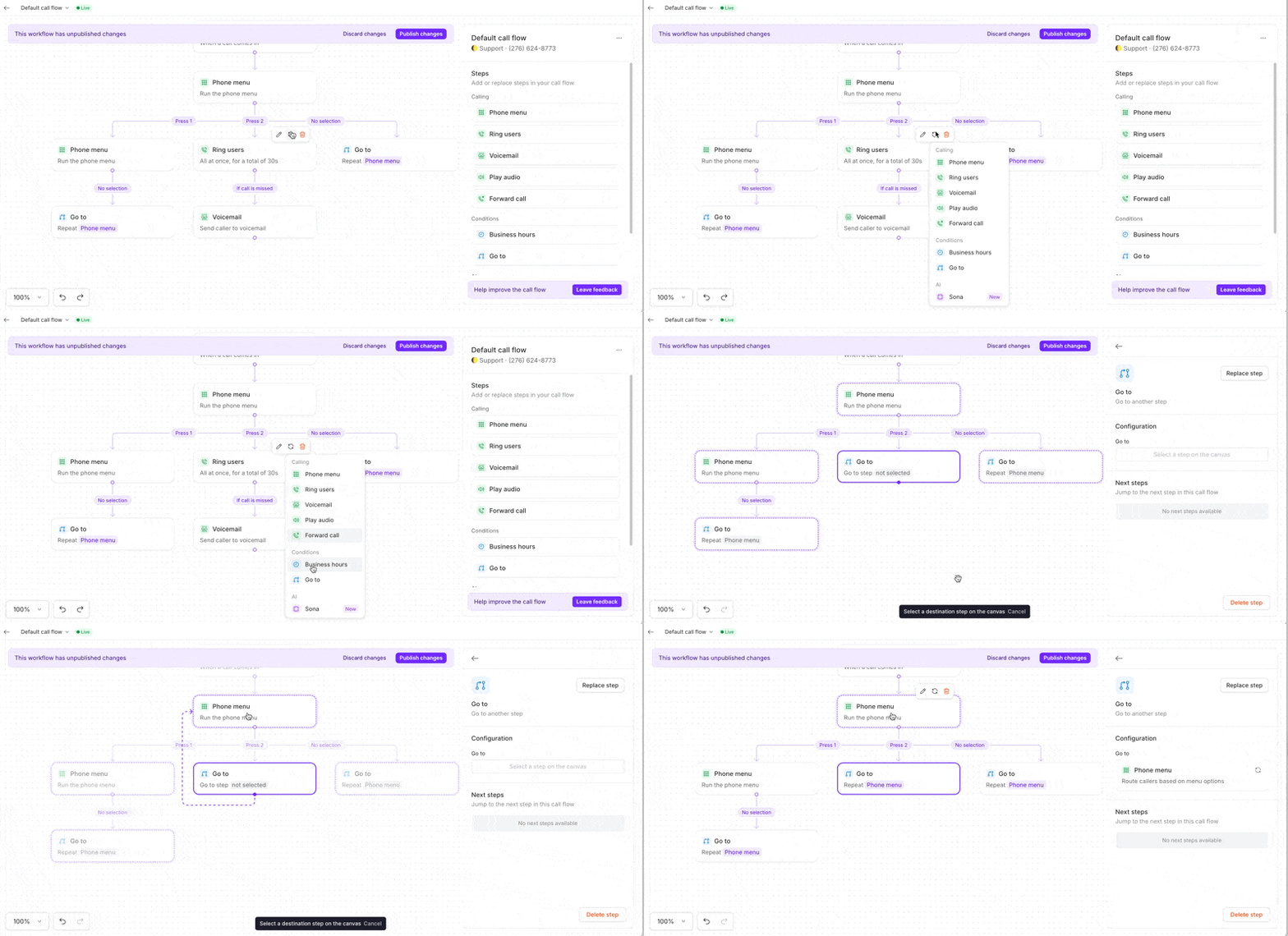
Each key press (0–9) can:
* Route to any other Call Flow Builder step (e.g., Ring users, Forward, Play audio, voicemail, Sona)
* Route to another **Phone menu** (a nested menu)
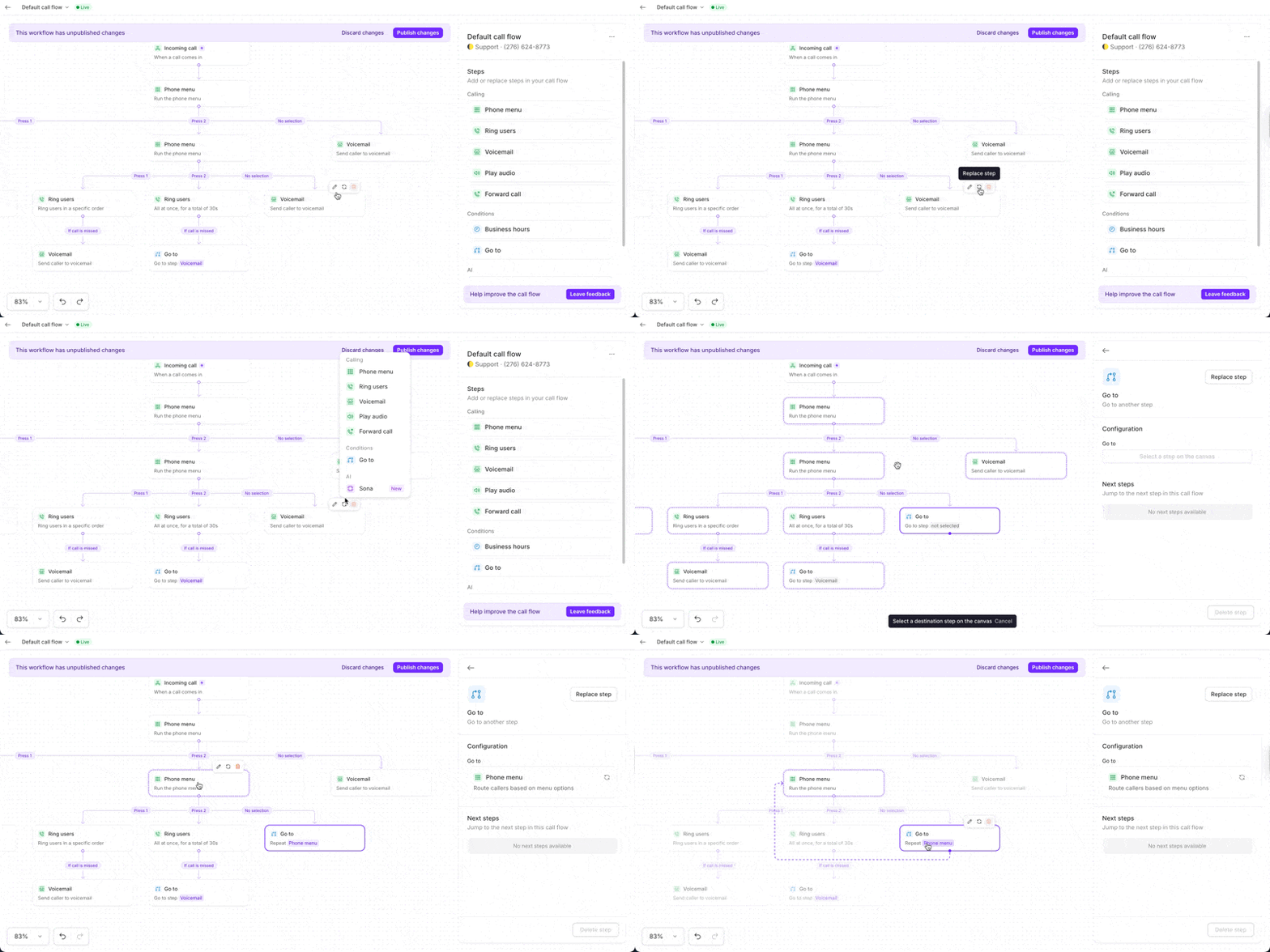
* **Tip:** Use **Go to** to avoid recreating steps (e.g., reuse an existing voicemail or agent group)
* Add a go to step to the canvas, then select any existing step on the canvas you want to route to
* Use **Repeat menu** to loop the caller back to the current menu or main menu.
### **Call flow builder routing options**
Each key press (0–9) can:
* Route to any other Call Flow Builder step (e.g., Ring users, Forward, Play audio, voicemail, Sona)
* Route to another **Phone menu** (a nested menu)
* **Tip:** Use **Go to** to avoid recreating steps (e.g., reuse an existing voicemail or agent group)
* Add a go to step to the canvas, then select any existing step on the canvas you want to route to
* Use **Repeat menu** to loop the caller back to the current menu or main menu.
 ### **In case of no selection**
If a caller doesn’t press anything:
* Use **Repeat menu** to give them another chance
* Route to another option (e.g. **Voicemail, Ring users, Forward** or **Sona)** to avoid frustration
### **In case of no selection**
If a caller doesn’t press anything:
* Use **Repeat menu** to give them another chance
* Route to another option (e.g. **Voicemail, Ring users, Forward** or **Sona)** to avoid frustration
 **Best practices**
* **Keep it short**: Limit menus to essential options. People want to talk to someone, not get stuck in a loop.
* **Use commands**: You can add a voice command (e.g. “1”), then mention in your greeting: “Press or say 1 to reach Support”
* **Use Go to** to reuse steps and simplify complex flows.
* **Send callers to Sona**, your AI agent, to reduce wait time and handle FAQs.
* **Avoid excessive depth**: We recommend keeping menus within 2 to 3 levels max.
## Other advanced configurations
### Time-based menus
Different menus for different times:
**Business hours menu**: Full options with live routing
1. Sales team
2. Support desk
3. Accounting
4. Schedule appointment
**After-hours menu**: Limited options
1. Emergency support
2. Leave a message
3. Business hours info
## Menu design best practices
**Keep it simple**
* **3-4 options maximum**: Prevents overwhelming callers
* **Logical grouping**: Putting related options together will make sense for callers
* **Most popular first**: Reduce average navigation time
* **Clear descriptions**: Avoid jargon or ambiguity
**Professional greeting tips**
1. **Start with company name**: Confirms they called the right number
2. **Be concise**: Don't record for longer than 20 seconds total
3. **Speak clearly**: Keep a moderate pace so people can keep up
4. **Include zero option**: Always offer a way out
**Optimize caller flow**
* **Self-service options**: Reduce call volume
* **Quick escape**: Easy path to human help
* **Consistent numbering**: Same options across menus
* **Test regularly**: Call your own number monthly
## Common phone menu patterns
1. Sales
2. Support
3. Hours & Location
4. Operator
1. New clients
2. Existing clients
3. Billing
4. Emergency
1. Place an order
2. Check order status
3. Store hours
4. Directions
1. Schedule appointment
2. Prescription refills
3. Test results
4. Urgent care
***
## FAQs
You can configure up to 10 options using digits 0-9. This is typically more than enough for most businesses. For more options, consider using multi-level menus.
Yes! Use business hours conditions to show different menus during business hours vs. after hours. You can also create seasonal or holiday-specific menus.
No, callers familiar with your menu can press their selection immediately without waiting. This speeds up the experience for repeat callers.
Yes, any menu option can forward to external US or Canadian numbers. This is useful for routing to answering services or specialist partners.
Text messages bypass the phone menu entirely. All team members with access to the number receive texts directly in their inbox.
Yes, by routing menu options to other Quo numbers with their own menus. Each number's menu triggers independently, allowing complex hierarchies.
Phone menus are included with Business and Scale plans at no extra charge. Starter plans need to upgrade to access this feature.
Currently, Quo supports single-digit options (0-9). Multi-digit extensions like 101 or 2145 aren't available yet.
**Best practices**
* **Keep it short**: Limit menus to essential options. People want to talk to someone, not get stuck in a loop.
* **Use commands**: You can add a voice command (e.g. “1”), then mention in your greeting: “Press or say 1 to reach Support”
* **Use Go to** to reuse steps and simplify complex flows.
* **Send callers to Sona**, your AI agent, to reduce wait time and handle FAQs.
* **Avoid excessive depth**: We recommend keeping menus within 2 to 3 levels max.
## Other advanced configurations
### Time-based menus
Different menus for different times:
**Business hours menu**: Full options with live routing
1. Sales team
2. Support desk
3. Accounting
4. Schedule appointment
**After-hours menu**: Limited options
1. Emergency support
2. Leave a message
3. Business hours info
## Menu design best practices
**Keep it simple**
* **3-4 options maximum**: Prevents overwhelming callers
* **Logical grouping**: Putting related options together will make sense for callers
* **Most popular first**: Reduce average navigation time
* **Clear descriptions**: Avoid jargon or ambiguity
**Professional greeting tips**
1. **Start with company name**: Confirms they called the right number
2. **Be concise**: Don't record for longer than 20 seconds total
3. **Speak clearly**: Keep a moderate pace so people can keep up
4. **Include zero option**: Always offer a way out
**Optimize caller flow**
* **Self-service options**: Reduce call volume
* **Quick escape**: Easy path to human help
* **Consistent numbering**: Same options across menus
* **Test regularly**: Call your own number monthly
## Common phone menu patterns
1. Sales
2. Support
3. Hours & Location
4. Operator
1. New clients
2. Existing clients
3. Billing
4. Emergency
1. Place an order
2. Check order status
3. Store hours
4. Directions
1. Schedule appointment
2. Prescription refills
3. Test results
4. Urgent care
***
## FAQs
You can configure up to 10 options using digits 0-9. This is typically more than enough for most businesses. For more options, consider using multi-level menus.
Yes! Use business hours conditions to show different menus during business hours vs. after hours. You can also create seasonal or holiday-specific menus.
No, callers familiar with your menu can press their selection immediately without waiting. This speeds up the experience for repeat callers.
Yes, any menu option can forward to external US or Canadian numbers. This is useful for routing to answering services or specialist partners.
Text messages bypass the phone menu entirely. All team members with access to the number receive texts directly in their inbox.
Yes, by routing menu options to other Quo numbers with their own menus. Each number's menu triggers independently, allowing complex hierarchies.
Phone menus are included with Business and Scale plans at no extra charge. Starter plans need to upgrade to access this feature.
Currently, Quo supports single-digit options (0-9). Multi-digit extensions like 101 or 2145 aren't available yet.