> ## Documentation Index
> Fetch the complete documentation index at: https://support.quo.com/llms.txt
> Use this file to discover all available pages before exploring further.
# How to use text to speech for custom call flow messages
> Create natural sounding greetings and announcements using text to speech in Quo.
Text to speech helps you turn written messages into audio, so you can update greetings quickly without recording a new message every time.
Quo’s enhanced text to speech uses a more natural sounding voice. If you have existing text to speech greetings, you may need to edit and save them again to apply the updated voice.
***
## **Enhanced text to speech**
Enhanced text to speech is designed to sound warm and professional so callers hear a greeting that feels human rather than robotic.
Standard text to speech voices are still supported and remain available in the dropdown under **Text to speech**.
***
## **Where text to speech is available**
Text to speech is available in several places within Quo’s call flow builder.
**All plans**
* [Voicemail greetings](https://support.quo.com/core-concepts/administration/call-flows/voicemail#create-your-greeting)
**Business and Scale plans**
* [Phone menu greetings](https://support.quo.com/core-concepts/administration/call-flows/phone-menu#create-your-greeting)
* [Play audio messages](https://support.quo.com/core-concepts/administration/call-flows/play-audio)
***
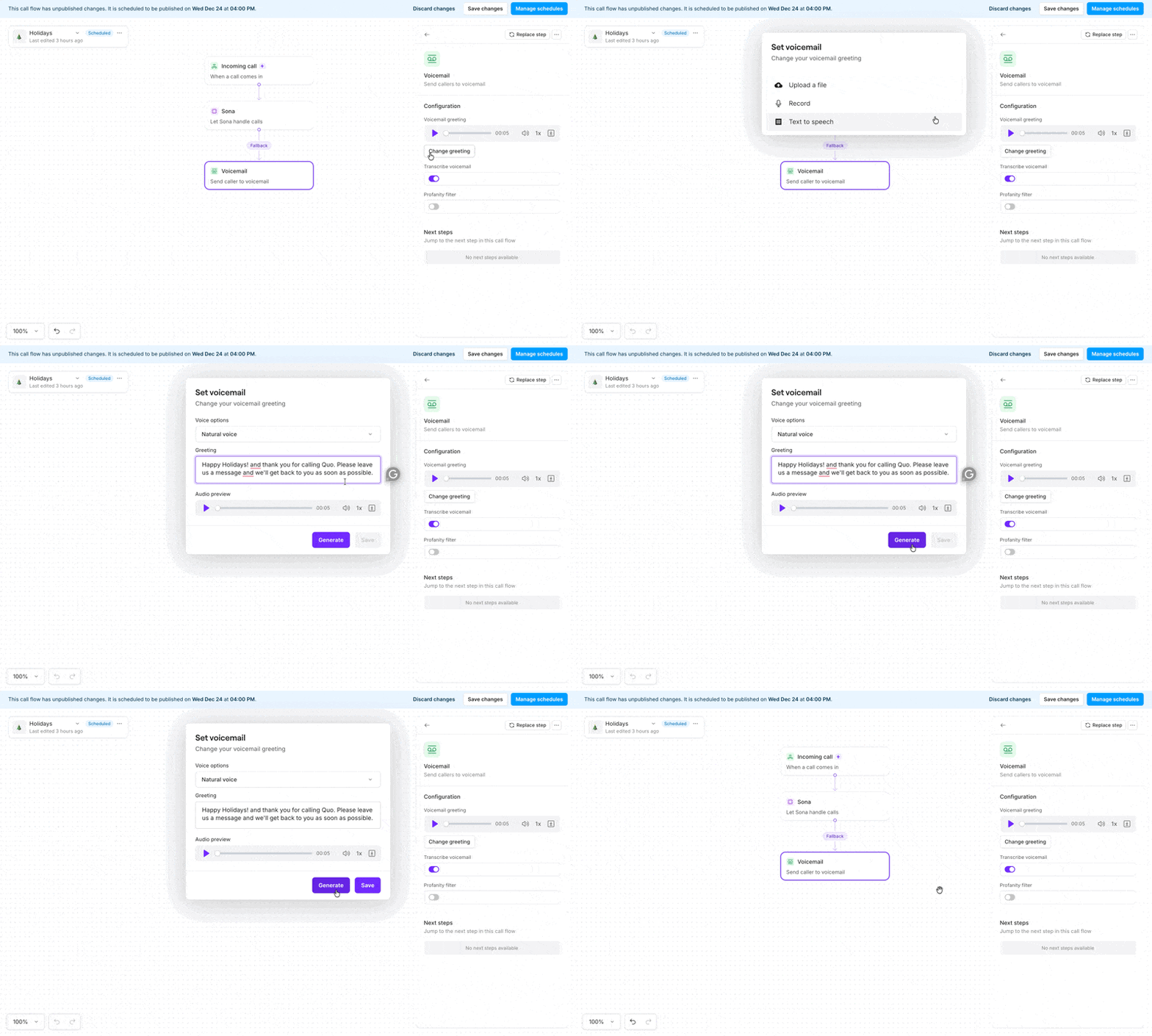
## **How to set up text to speech**
1. Navigate to the call flow builder
2. Select **an option with a greeting**
* This could be **Voicemail**, **Phone menu** or **Play audio**
3. Choose **Text to speech**
4. Choose from the available voice options:
* **4 natural voices** — newer, high-quality options
* **1 legacy text-to-speech voice** — the original TTS option
5. Click **Generate** to create your greeting
6. Preview your greeting using the **Play button**
7. Once satisfied, click **Save** to save your changes
When switching between **Standard voice** and **Natural voice**, the **Generate** button needs to be clicked to generate a new preview.
6. Save when you’re ready
Text to speech is a good fit for announcements that change often, like holiday hours or temporary notices. If you expect to switch routing back after a short period, [temporary call flows](https://support.quo.com/core-concepts/administration/call-flows/temp-call-flows) can help you manage those changes more efficiently.
 ## **Write a greeting that sounds natural**
### **Make numbers easy to understand**
Enhanced text to speech interprets numbers based on context. Writing numbers out and adding pauses can help avoid unexpected pronunciation.
**Phone numbers**
| ✅ Do | ❌ Don't |
| ------------------------------------------------------------------------------------------------------- | ------------------------------------------------------------------------------ |
| Write numbers phonetically with pauses, such as “two zero one... five five five... one two three four”. | Enter formatted numbers like “201-555-1234”. These may be read inconsistently. |
**Emergency numbers**
| ✅ Do | ❌ Don't |
| :------------------------------------- | :------------------------------------------------------- |
| Write “nine one one” instead of “911”. | Write “911”, which may be read as “nine hundred eleven”. |
**Menu options**
| ✅ Do | ❌ Don't |
| :------------------------------------------------------------------- | :------------------------------------------------------------------- |
| Keep options simple, such as “Press one for sales, two for support”. | Rely on typing numbers out if you need it pronounced a specific way. |
### **Control pacing with punctuation**
Enhanced text to speech doesn’t support speech markup, but punctuation can still shape delivery.
* Use ellipses **(...)** for longer pauses
* Use commas **(,)** for brief pauses
* Use periods **(.)** for full stops
> **Example**\
> *Thank you for calling... We’ll be right with you. Press one for sales, or stay on the line.*
### **Handle names, acronyms, and special terms**
If a word is mispronounced, try spelling it the way it sounds. For acronyms, spacing out letters often helps.
**Company names and acronyms**
| ✅ Do | ❌ Don't |
| :------------------------------------------------------------------ | :----------------------------------------------------------------------------------------- |
| Write names phonetically if needed, such as “Kwo” instead of “Quo”. | Skip previewing your greeting to determine if you need to try spelling a word differently. |
| Space out letters for acronyms, such as “I T” instead of “IT”. | Keep letters together, as it may be read as a word. |
**Addresses and codes**
| ✅ Do | ❌ Don't |
| :------------------------------------------------------------------------ | :----------------------------------------------------------------- |
| Write write numbers as words, such as “Suite three hundred”. | Rely on numbers formatted as "1234" for building numbers or codes. |
| Spell out directions, such as “North Main Street” instead of “N Main St”. | Use shortened addressed like, “N Main St”. |
## **Troubleshooting**
Edit the message and save it again to apply the enhanced voice.
Try spelling the word phonetically or adjusting punctuation to guide pacing.
## Get started with text to speech
Text to speech can be used anywhere from voicemail greetings to phone menus and audio announcements. It’s especially useful for messages that change often, like holiday hours, temporary updates, or short informational notices.
Learn more in these articles:
* [Build and manage call flows](https://support.quo.com/core-concepts/administration/call-flows/overview)
* [Play audio messages in a call flow](https://support.quo.com/core-concepts/administration/call-flows/play-audio)
* [Set up phone menus](https://support.quo.com/core-concepts/administration/call-flows/phone-menu)
* [Configure voicemail greetings](https://support.quo.com/core-concepts/administration/call-flows/voicemail)
## **Write a greeting that sounds natural**
### **Make numbers easy to understand**
Enhanced text to speech interprets numbers based on context. Writing numbers out and adding pauses can help avoid unexpected pronunciation.
**Phone numbers**
| ✅ Do | ❌ Don't |
| ------------------------------------------------------------------------------------------------------- | ------------------------------------------------------------------------------ |
| Write numbers phonetically with pauses, such as “two zero one... five five five... one two three four”. | Enter formatted numbers like “201-555-1234”. These may be read inconsistently. |
**Emergency numbers**
| ✅ Do | ❌ Don't |
| :------------------------------------- | :------------------------------------------------------- |
| Write “nine one one” instead of “911”. | Write “911”, which may be read as “nine hundred eleven”. |
**Menu options**
| ✅ Do | ❌ Don't |
| :------------------------------------------------------------------- | :------------------------------------------------------------------- |
| Keep options simple, such as “Press one for sales, two for support”. | Rely on typing numbers out if you need it pronounced a specific way. |
### **Control pacing with punctuation**
Enhanced text to speech doesn’t support speech markup, but punctuation can still shape delivery.
* Use ellipses **(...)** for longer pauses
* Use commas **(,)** for brief pauses
* Use periods **(.)** for full stops
> **Example**\
> *Thank you for calling... We’ll be right with you. Press one for sales, or stay on the line.*
### **Handle names, acronyms, and special terms**
If a word is mispronounced, try spelling it the way it sounds. For acronyms, spacing out letters often helps.
**Company names and acronyms**
| ✅ Do | ❌ Don't |
| :------------------------------------------------------------------ | :----------------------------------------------------------------------------------------- |
| Write names phonetically if needed, such as “Kwo” instead of “Quo”. | Skip previewing your greeting to determine if you need to try spelling a word differently. |
| Space out letters for acronyms, such as “I T” instead of “IT”. | Keep letters together, as it may be read as a word. |
**Addresses and codes**
| ✅ Do | ❌ Don't |
| :------------------------------------------------------------------------ | :----------------------------------------------------------------- |
| Write write numbers as words, such as “Suite three hundred”. | Rely on numbers formatted as "1234" for building numbers or codes. |
| Spell out directions, such as “North Main Street” instead of “N Main St”. | Use shortened addressed like, “N Main St”. |
## **Troubleshooting**
Edit the message and save it again to apply the enhanced voice.
Try spelling the word phonetically or adjusting punctuation to guide pacing.
## Get started with text to speech
Text to speech can be used anywhere from voicemail greetings to phone menus and audio announcements. It’s especially useful for messages that change often, like holiday hours, temporary updates, or short informational notices.
Learn more in these articles:
* [Build and manage call flows](https://support.quo.com/core-concepts/administration/call-flows/overview)
* [Play audio messages in a call flow](https://support.quo.com/core-concepts/administration/call-flows/play-audio)
* [Set up phone menus](https://support.quo.com/core-concepts/administration/call-flows/phone-menu)
* [Configure voicemail greetings](https://support.quo.com/core-concepts/administration/call-flows/voicemail)