> ## Documentation Index
> Fetch the complete documentation index at: https://support.quo.com/llms.txt
> Use this file to discover all available pages before exploring further.
# Go to step
> How to use the Go to step in our call flow builder
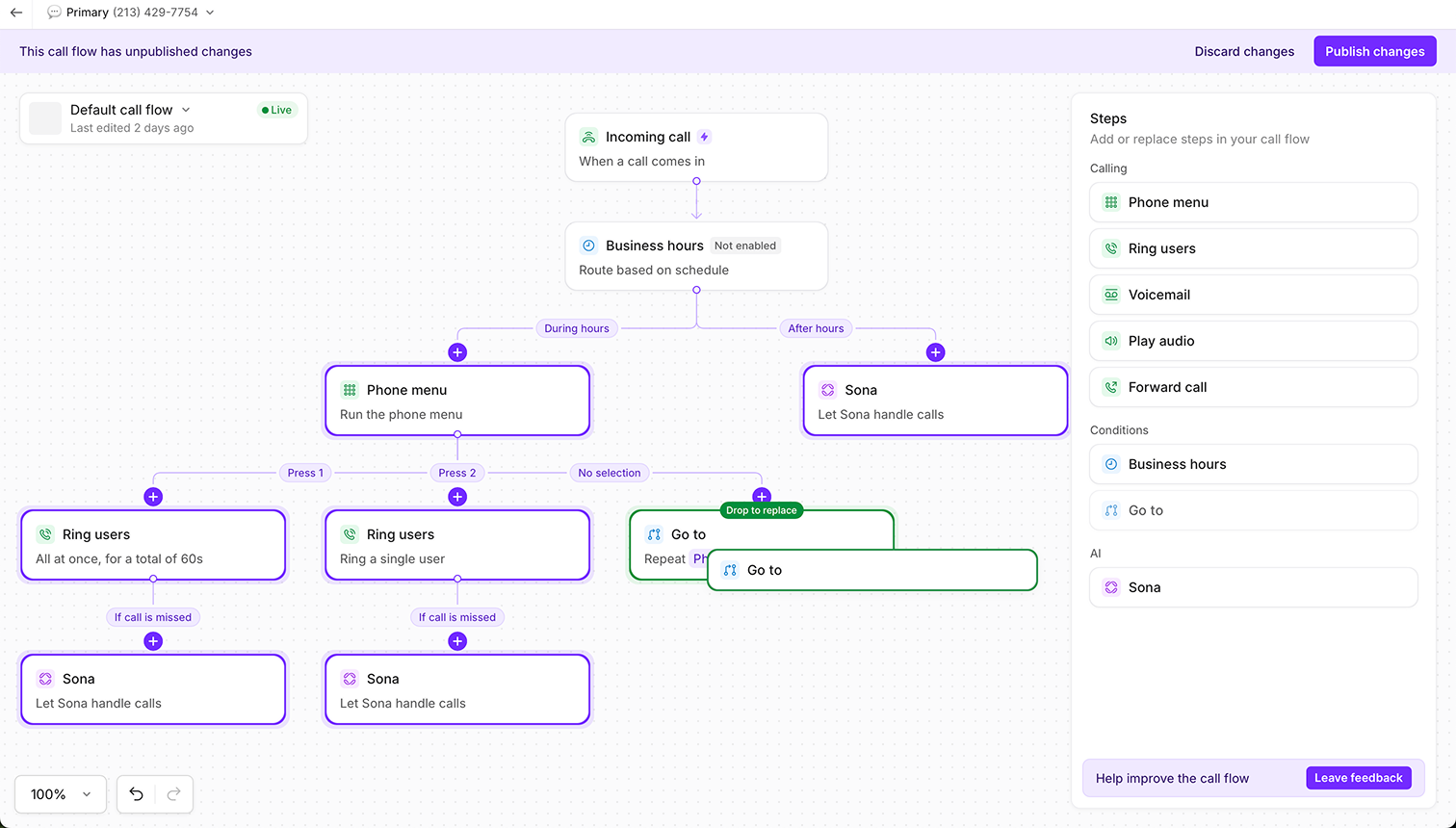
The **Go to** step in the call flow builder lets you route callers to a different step in your flow, without having to recreate the same configuration multiple times.
This keeps your call flows clean, consistent, and easy to maintain, especially when routing to the same voicemail, greeting, or Sona setup across different scenarios. The **Go to** step is available on all Quo, formerly OpenPhone, plans.
 ## **When to use the Go to step**
Instead of rebuilding steps twice (or more), you can use **Go to** step to point callers to the right part of your flow.
Here are a few examples where **Go to s**tep comes in handy:
* Route to the same AI agent (Sona) during and after business hours, instead of adding a different iteration of Sona to different places
* Send all missed calls (from different ring groups) to the same voicemail
* Replay a specific greeting (like a recording of your address or hours) from different parts of the call flow
* In nested phone menus, route callers back to the main menu if they need to start over (under “no selection” or after a specific keypad selection)
## **How to add a Go to step**
1. In the call flow builder, navigate to a step where you want to redirect the caller to a step you’ve already created
2. Select **Go to** step from the side menu and drag it into the canvas (or “+” button on the canvas, then pick the go to step)
3. Choose the step you want to send callers to.
Once added, you’ll see a connector line pointing to the step you selected, making it easy to track your flow logic.
## **When to use the Go to step**
Instead of rebuilding steps twice (or more), you can use **Go to** step to point callers to the right part of your flow.
Here are a few examples where **Go to s**tep comes in handy:
* Route to the same AI agent (Sona) during and after business hours, instead of adding a different iteration of Sona to different places
* Send all missed calls (from different ring groups) to the same voicemail
* Replay a specific greeting (like a recording of your address or hours) from different parts of the call flow
* In nested phone menus, route callers back to the main menu if they need to start over (under “no selection” or after a specific keypad selection)
## **How to add a Go to step**
1. In the call flow builder, navigate to a step where you want to redirect the caller to a step you’ve already created
2. Select **Go to** step from the side menu and drag it into the canvas (or “+” button on the canvas, then pick the go to step)
3. Choose the step you want to send callers to.
Once added, you’ll see a connector line pointing to the step you selected, making it easy to track your flow logic.
 ## **How to change your Go to step destination**
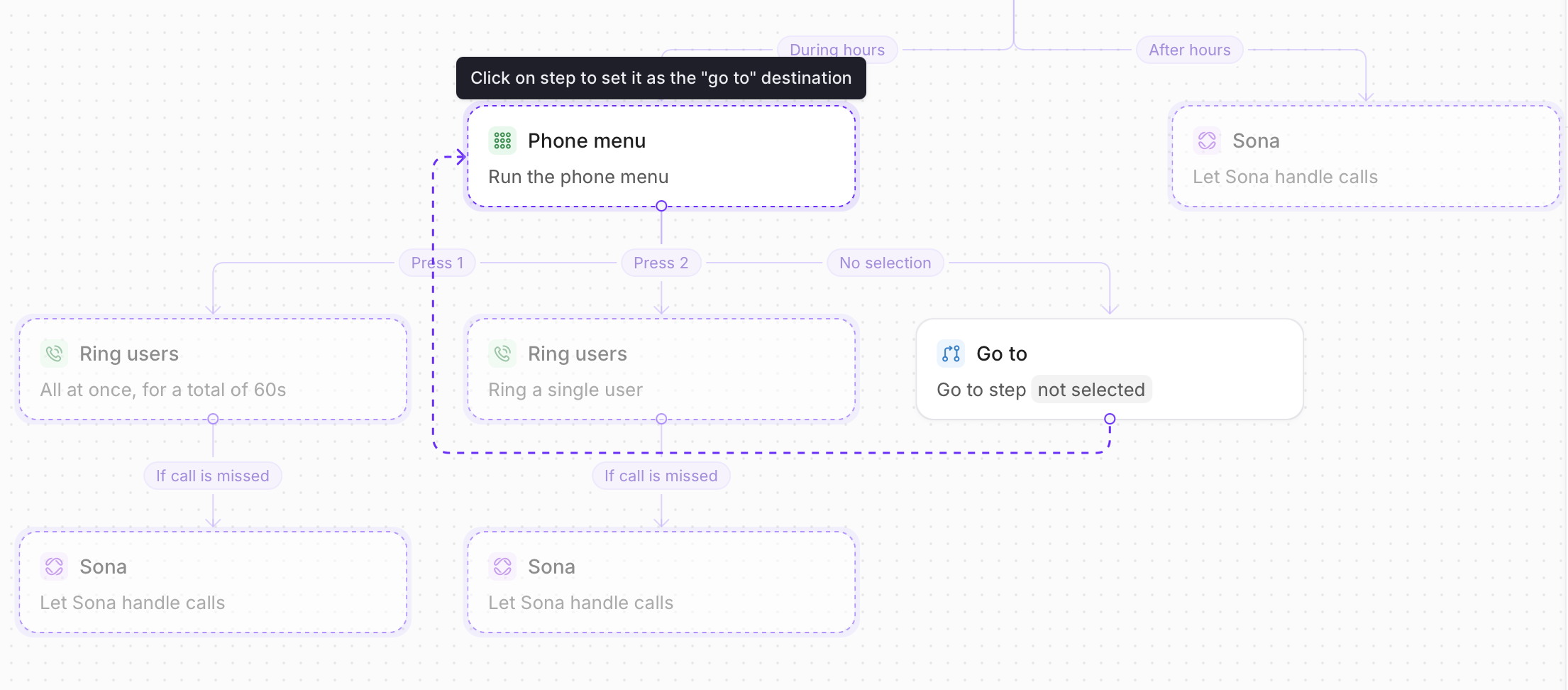
You have two options for where to make the change:
1. **From the right side panel**, select ***Replace go to destination*** (🔄 icon) in your **Go to** step, or
2. **In the call flow builder canvas**, hover over the top right-hand side of the step to reveal the toolbar then select **Replace step.**
You’ll be prompted to choose the step you want to send callers to. You’ll see a connector line pointing to the step you selected.
Practice using call flows with interactive demos, videos, and more in the Quo Academy.
## **How to change your Go to step destination**
You have two options for where to make the change:
1. **From the right side panel**, select ***Replace go to destination*** (🔄 icon) in your **Go to** step, or
2. **In the call flow builder canvas**, hover over the top right-hand side of the step to reveal the toolbar then select **Replace step.**
You’ll be prompted to choose the step you want to send callers to. You’ll see a connector line pointing to the step you selected.
Practice using call flows with interactive demos, videos, and more in the Quo Academy.