> ## Documentation Index
> Fetch the complete documentation index at: https://support.quo.com/llms.txt
> Use this file to discover all available pages before exploring further.
# Business hours
> Set when you're available to receive calls and automatically route after-hours callers to voicemail or custom messages
## Overview
Business hours put you in control of when you receive calls, ensuring work-life balance while maintaining professional customer service. When someone calls outside your set hours, Quo, formerly OpenPhone, automatically routes them according to your after-hours preferences—whether that's voicemail, a custom message, or forwarding to an answering service.
Practice setting your business hours and using call flows with interactive demos, videos, and more in the Quo Academy.
## Understanding business hours
### How it works
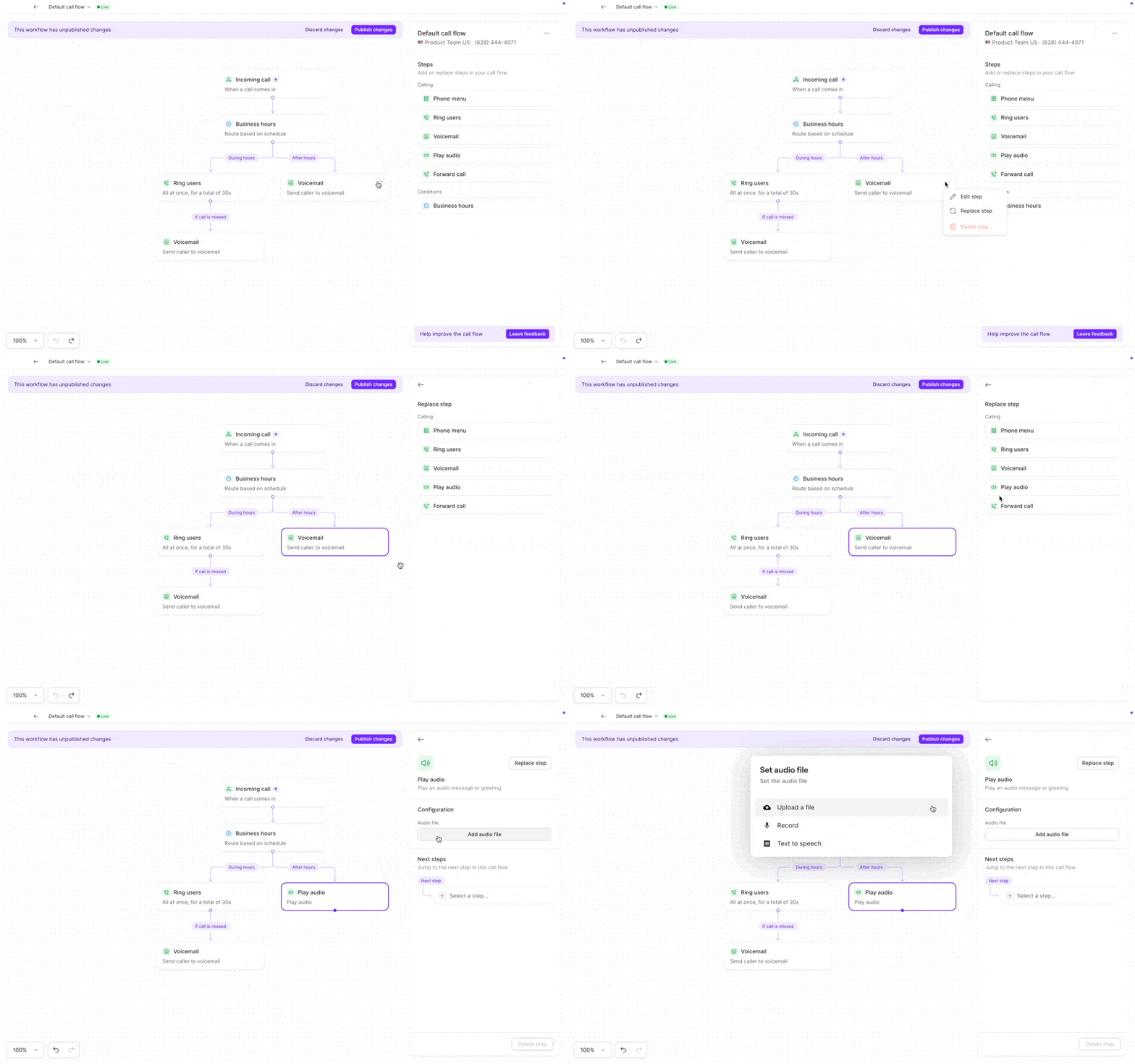
Business hours is a condition step in your call flow that creates two paths:
* **During hours**: Routes calls when you're open
* **After hours**: Routes calls when you're closed
 ### Key features
* **Automatic routing**: No manual switching between available and away
* **Custom schedules**: Different hours for different days
* **Time zone aware**: Set hours in your local time zone
* **Flexible messaging**: Different greetings for business vs. after hours
Quo currently supports one consecutive time period per day. You cannot set split shifts (e.g., 9am-12pm and 2pm-5pm).
## Setting up business hours
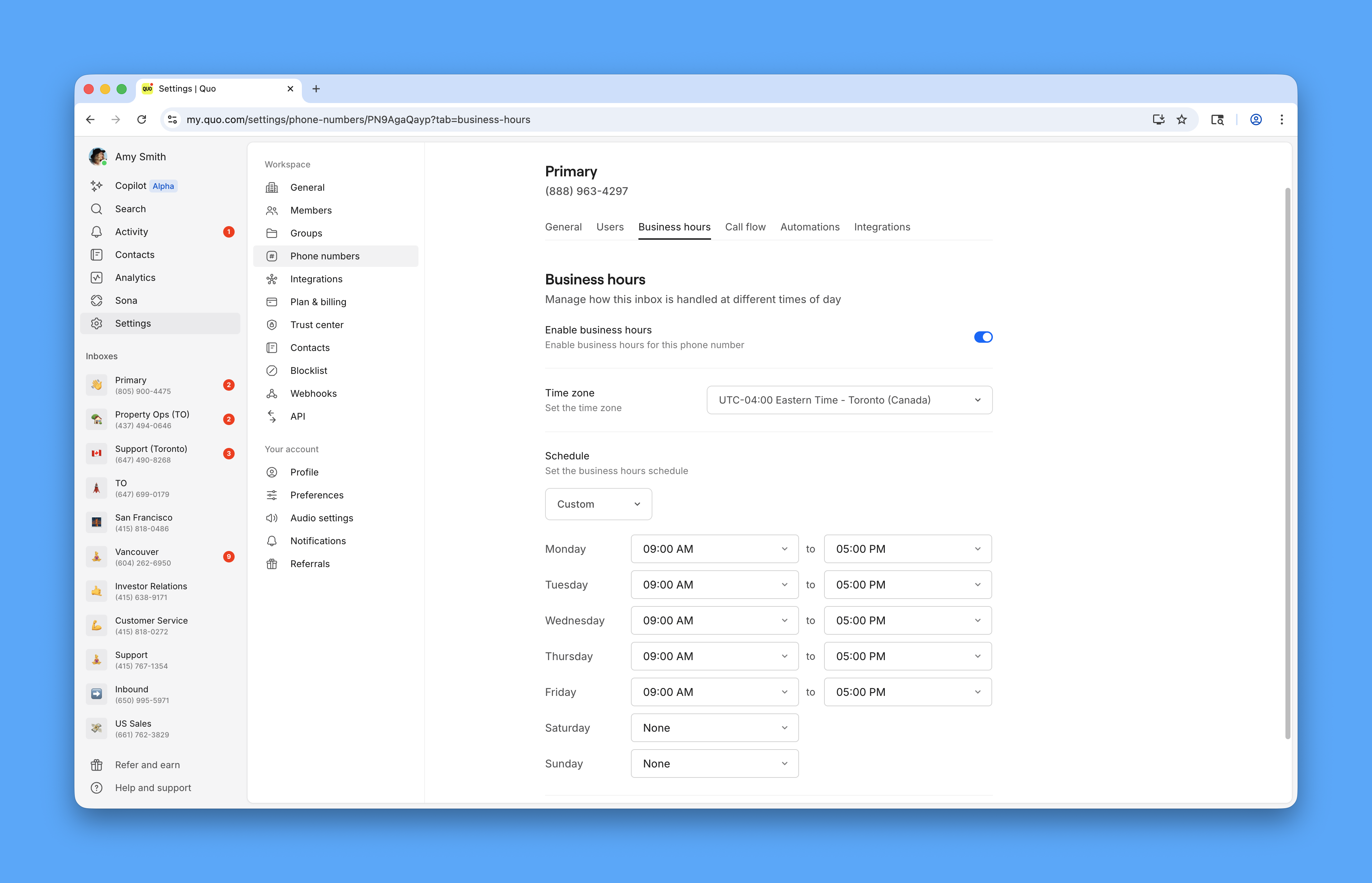
### Configure your schedule
1. Go to **Settings** → **Phone numbers**
2. Select the number to configure
3. Toggle **Enable business hours** on
4. Set your availability:
* Choose your time zone
* Select daily schedule type:
* **Every day**: Same hours daily
* **Weekdays**: Monday-Friday only
* **Custom**: Different hours per day
Access full business hours configuration in Settings → Phone numbers
Limited configuration available - use web for initial setup
***
### Add to your call flow
1. Open the call flow builder
2. Drag **Business hours** after the Incoming call trigger
3. Configure your **During hours** path (typically Ring users)
4. Configure your **After hours** path (Voicemail, Play audio, or Forward)
### Key features
* **Automatic routing**: No manual switching between available and away
* **Custom schedules**: Different hours for different days
* **Time zone aware**: Set hours in your local time zone
* **Flexible messaging**: Different greetings for business vs. after hours
Quo currently supports one consecutive time period per day. You cannot set split shifts (e.g., 9am-12pm and 2pm-5pm).
## Setting up business hours
### Configure your schedule
1. Go to **Settings** → **Phone numbers**
2. Select the number to configure
3. Toggle **Enable business hours** on
4. Set your availability:
* Choose your time zone
* Select daily schedule type:
* **Every day**: Same hours daily
* **Weekdays**: Monday-Friday only
* **Custom**: Different hours per day
Access full business hours configuration in Settings → Phone numbers
Limited configuration available - use web for initial setup
***
### Add to your call flow
1. Open the call flow builder
2. Drag **Business hours** after the Incoming call trigger
3. Configure your **During hours** path (typically Ring users)
4. Configure your **After hours** path (Voicemail, Play audio, or Forward)
 **Try it hands-on:** Practice building call flows with interactive demos in [the Quo Academy.](https://learn.quo.com/setting-up-quo/routing-calls-with-the-call-flow-builder/?utm_source=support\&utm_medium=help_center\&utm_campaign=quo_academy\&utm_content=call_flow_builder_article)
***
### Update greetings on mobile
1. Tap your account icon (top left)
2. Tap **Manage** next to phone numbers
3. Select your phone number
4. Tap **Business hours** → **Voicemail**
5. Record new greeting or upload MP3
6. Select greeting (purple checkmark confirms selection)
Full voicemail configuration available in call flow builder
***
## FAQs
Yes, select "Custom" when configuring business hours to set unique hours for each day of the week. This is perfect for businesses with varied schedules.
Text messages are always delivered regardless of business hours. Business hours only affect call routing. You can set up auto-replies for texts if you want automated responses.
Business hours apply to the entire phone number, not individual users. However, team members can set personal work schedules that affect when they receive notifications.
Since Quo only supports one time period per day, you'll need to choose whether to stay "open" during lunch with modified voicemail greetings, or close for the entire afternoon.
Yes, you can quickly toggle business hours on/off in settings, or modify your call flow to "Forward all calls" when needed for emergencies or special circumstances.
Yes, each phone number has its own business hours settings. This allows different departments or brands to maintain different schedules.
**Try it hands-on:** Practice building call flows with interactive demos in [the Quo Academy.](https://learn.quo.com/setting-up-quo/routing-calls-with-the-call-flow-builder/?utm_source=support\&utm_medium=help_center\&utm_campaign=quo_academy\&utm_content=call_flow_builder_article)
***
### Update greetings on mobile
1. Tap your account icon (top left)
2. Tap **Manage** next to phone numbers
3. Select your phone number
4. Tap **Business hours** → **Voicemail**
5. Record new greeting or upload MP3
6. Select greeting (purple checkmark confirms selection)
Full voicemail configuration available in call flow builder
***
## FAQs
Yes, select "Custom" when configuring business hours to set unique hours for each day of the week. This is perfect for businesses with varied schedules.
Text messages are always delivered regardless of business hours. Business hours only affect call routing. You can set up auto-replies for texts if you want automated responses.
Business hours apply to the entire phone number, not individual users. However, team members can set personal work schedules that affect when they receive notifications.
Since Quo only supports one time period per day, you'll need to choose whether to stay "open" during lunch with modified voicemail greetings, or close for the entire afternoon.
Yes, you can quickly toggle business hours on/off in settings, or modify your call flow to "Forward all calls" when needed for emergencies or special circumstances.
Yes, each phone number has its own business hours settings. This allows different departments or brands to maintain different schedules.