> ## Documentation Index
> Fetch the complete documentation index at: https://support.quo.com/llms.txt
> Use this file to discover all available pages before exploring further.
# Status
> Set your availability status and view your team's presence in Quo, formerly OpenPhone
## Overview
Status indicators help you and your team stay connected by showing availability at a glance. Let colleagues know what you're working on, when you're available, and coordinate more effectively across your organization.
## Setting your status
Communicate your availability and current focus to help teammates know the best time to reach you.
### Quick status options
1. Click on your name or profile picture in the top left corner
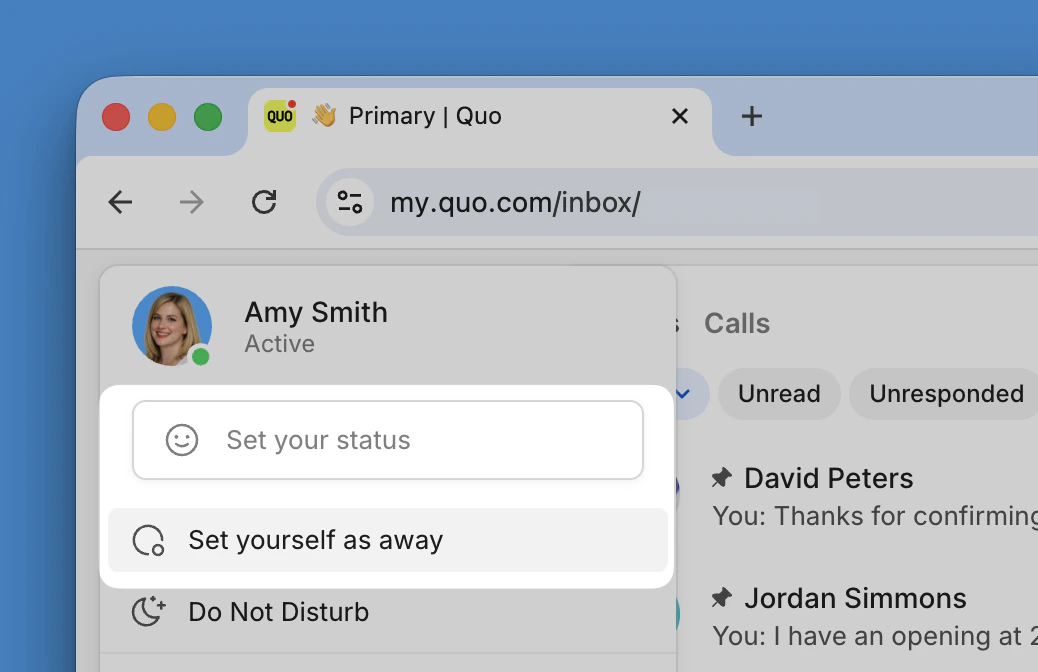 2. Choose from two options:
* **Set your status**: Select from suggested options or type a custom status
* **Set yourself as away**: Quick toggle to show you're unavailable
### Custom status messages
Create personalized status messages to give teammates context about your availability:
* "In a meeting until 3pm"
* "Working on proposals"
* "Out of office - back Monday"
* "Available for urgent calls only"
### Returning to active status
When you're ready to show as available again:
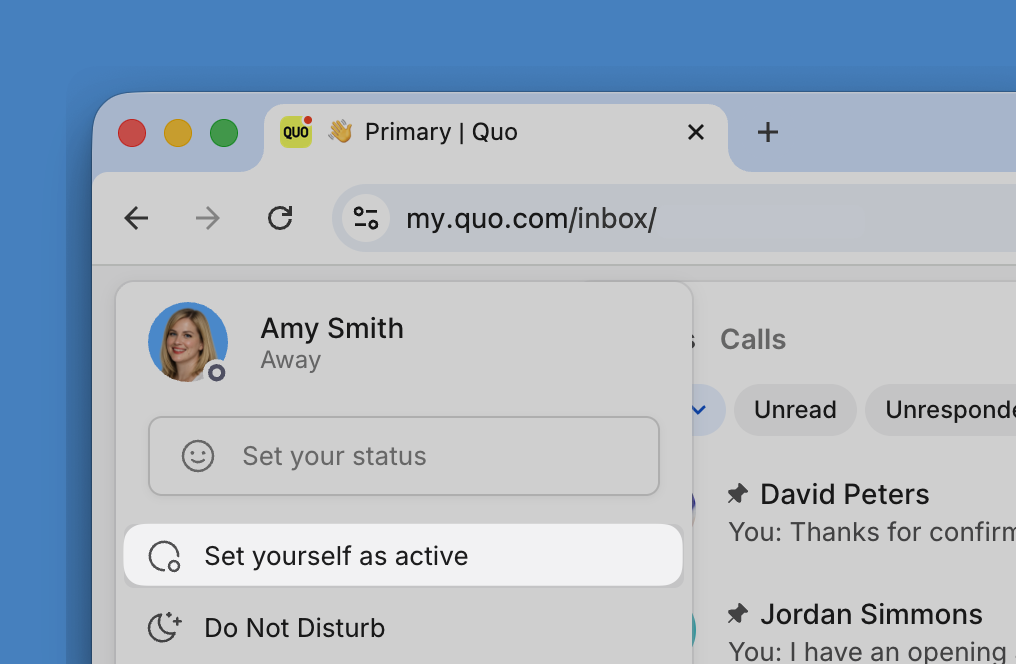
1. Click on your profile in the top left corner
2. Select **Set yourself as active**
2. Choose from two options:
* **Set your status**: Select from suggested options or type a custom status
* **Set yourself as away**: Quick toggle to show you're unavailable
### Custom status messages
Create personalized status messages to give teammates context about your availability:
* "In a meeting until 3pm"
* "Working on proposals"
* "Out of office - back Monday"
* "Available for urgent calls only"
### Returning to active status
When you're ready to show as available again:
1. Click on your profile in the top left corner
2. Select **Set yourself as active**
 ## Viewing team status
Stay informed about your colleagues' availability to improve team coordination and communication timing.
### Team presence indicators
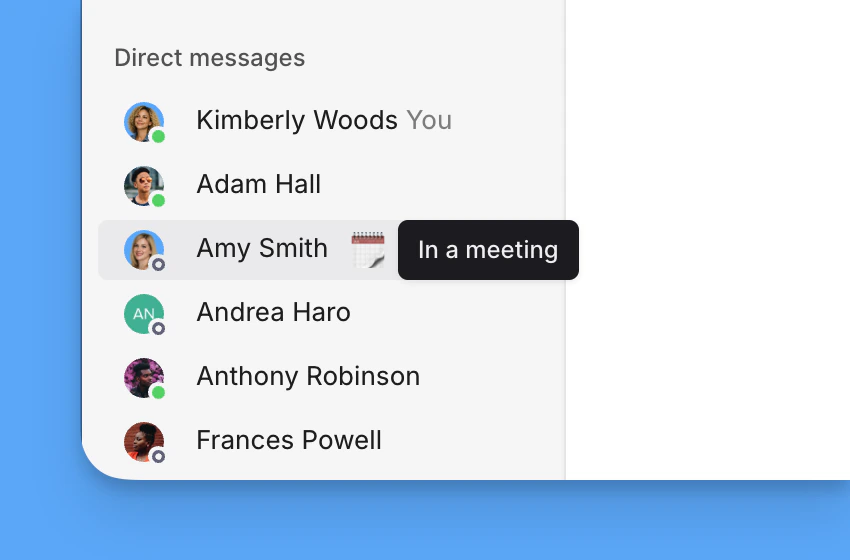
In the left panel under "Your team", you can quickly see who's available:
* **Green dot (filled)**: Team member is online and active
* **Gray dot (empty)**: Team member is offline or away
* **Status emoji**: Indicates a custom status is set
## Viewing team status
Stay informed about your colleagues' availability to improve team coordination and communication timing.
### Team presence indicators
In the left panel under "Your team", you can quickly see who's available:
* **Green dot (filled)**: Team member is online and active
* **Gray dot (empty)**: Team member is offline or away
* **Status emoji**: Indicates a custom status is set
 ### Viewing status details
To see a teammate's custom status message:
1. Hover over the emoji next to their name
2. Their full status message appears in a tooltip
### Viewing status details
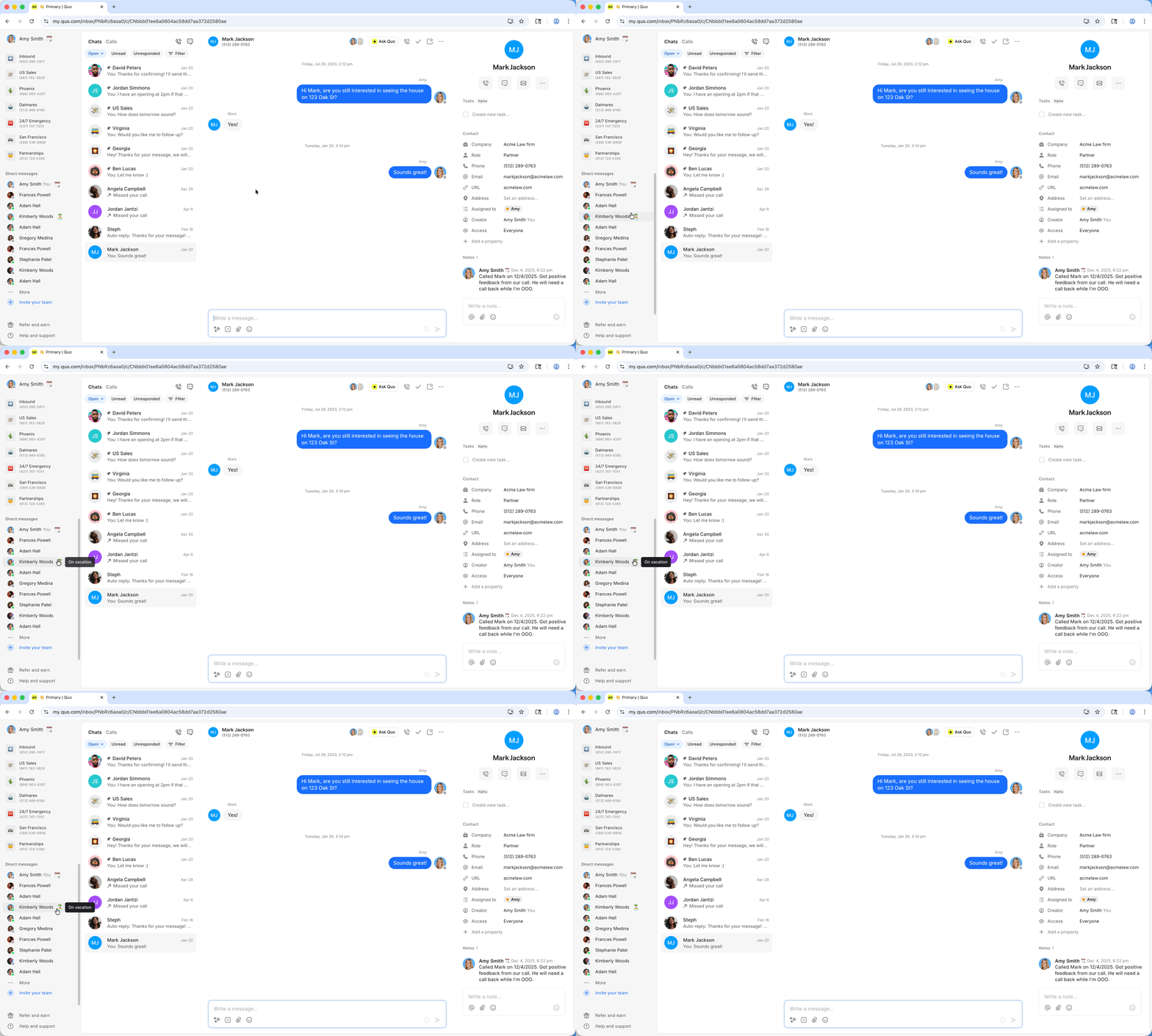
To see a teammate's custom status message:
1. Hover over the emoji next to their name
2. Their full status message appears in a tooltip
 ## Status and other availability features
Your status works alongside other Quo availability features:
* **Do Not Disturb**: Status remains visible even when DND is active
* **Business hours**: Status can indicate availability outside normal hours
* **Muted numbers**: Status is independent of phone number muting
Combine status messages with Do Not Disturb for complete availability management. For example, set your status to "In meeting until 3pm" and activate Do Not Disturb to ensure uninterrupted focus.
## FAQs
Yes, your status syncs across all devices where you're logged into Quo. Set it once and it appears everywhere.
Custom status messages remain until you manually change or clear them. There's no automatic expiration, so remember to update your status when your availability changes.
Currently, Quo doesn't track status history or provide analytics. Status is designed for real-time team coordination rather than historical reporting.
No, status indicators are only visible to members of your Quo workspace. Customers calling or texting won't see your availability status.
## Status and other availability features
Your status works alongside other Quo availability features:
* **Do Not Disturb**: Status remains visible even when DND is active
* **Business hours**: Status can indicate availability outside normal hours
* **Muted numbers**: Status is independent of phone number muting
Combine status messages with Do Not Disturb for complete availability management. For example, set your status to "In meeting until 3pm" and activate Do Not Disturb to ensure uninterrupted focus.
## FAQs
Yes, your status syncs across all devices where you're logged into Quo. Set it once and it appears everywhere.
Custom status messages remain until you manually change or clear them. There's no automatic expiration, so remember to update your status when your availability changes.
Currently, Quo doesn't track status history or provide analytics. Status is designed for real-time team coordination rather than historical reporting.
No, status indicators are only visible to members of your Quo workspace. Customers calling or texting won't see your availability status.