> ## Documentation Index
> Fetch the complete documentation index at: https://support.quo.com/llms.txt
> Use this file to discover all available pages before exploring further.
# Work schedule
> Set your personal work hours to control when you receive notifications
## Overview
Set your personal work schedule to control for when you receive notifications for calls and texts. This feature is particularly useful if you work in shifts or have specific hours when you're available to handle business communications.
## Understanding work schedules
Work schedules allow you to choose your personal availability independently from your phone number's business hours. This distinction is important:
* **Business hours**: Control when a phone number can receive calls (applies to everyone)
* **Work schedule**: Controls when you personally receive notifications (applies only to you)
Work schedules are especially helpful for:
* Teams working in shifts
* Part-time employees with specific hours
* Remote workers in different time zones
* Anyone who shares phone numbers but has distinct availability
Work schedule settings only affect your personal notifications. Your teammates will continue to receive notifications based on their own schedules.
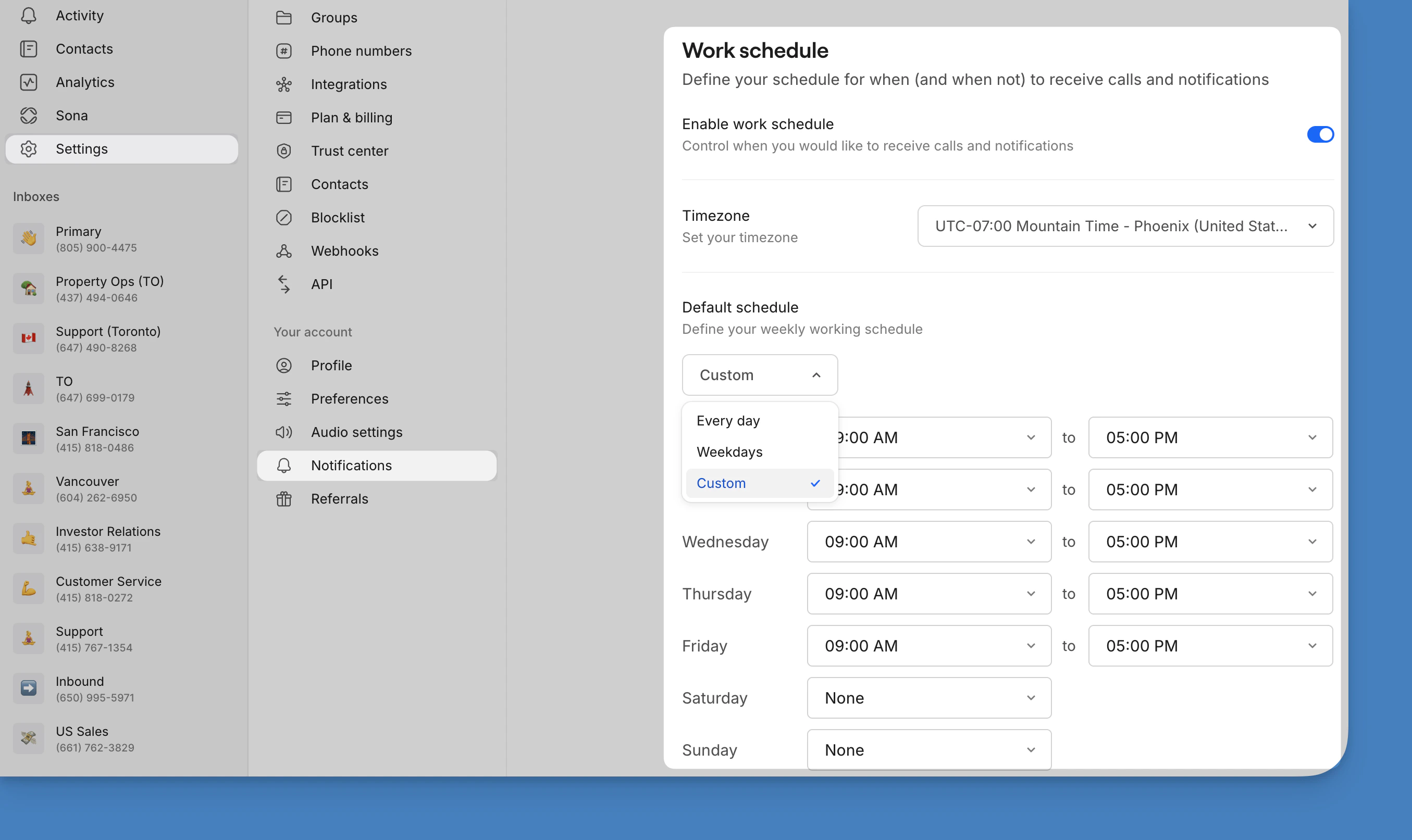
## Setting your work schedule
Configure your availability to ensure you only receive notifications during your working hours.
Work schedules can only be configured using the web or desktop app, not mobile.
### Step-by-step setup
1. Navigate to [Settings](https://my.quo.com/settings/) from the left menu
2. Under "Your account", select [Notifications](https://my.quo.com/settings/notifications)
3. Scroll to the **Work schedule** section
4. Toggle on **Enable work schedule**
5. Set your available hours for each day of the week
 ### Configuring your hours
For each day, you can:
* Set start and end times for your availability
* Enable or disable specific days
* Create different schedules for different days
* Account for lunch breaks or split shifts
## How work schedules function
### During work hours
When you're within your scheduled hours:
* All notifications arrive normally
* Calls ring through as usual
* Text message alerts appear immediately
### Outside work hours
When you're outside your scheduled hours:
* Incoming calls go to voicemail
* No notification sounds or alerts
* Messages are received but notifications are suppressed
* Missed calls and messages are available when you return
### Interaction with other features
Work schedules complement other availability features:
* **Shared numbers**: Each team member can set individual schedules
* **Do Not Disturb**: Overrides work schedule when activated
* **Muted numbers**: Takes precedence over work schedule settings
* **Business hours**: Work schedule must fall within business hours to receive calls
Remember to coordinate your work schedule with teammates who share your phone numbers to ensure consistent coverage throughout your business hours.
## FAQs
Currently, work schedules apply to all your phone numbers. You cannot set different schedules for individual numbers. Use the mute feature if you need number-specific availability.
Calls received outside your work schedule go directly to voicemail. Callers won't know you have a personal schedule set - they'll experience the same flow as if you didn't answer.
Yes, you can use Do Not Disturb to become unavailable during work hours, or simply disable your work schedule temporarily in settings when you need to be available outside normal hours.
Currently, work schedules don't integrate with external calendar applications. You'll need to manually update your schedule in the settings when your availability changes.
### Configuring your hours
For each day, you can:
* Set start and end times for your availability
* Enable or disable specific days
* Create different schedules for different days
* Account for lunch breaks or split shifts
## How work schedules function
### During work hours
When you're within your scheduled hours:
* All notifications arrive normally
* Calls ring through as usual
* Text message alerts appear immediately
### Outside work hours
When you're outside your scheduled hours:
* Incoming calls go to voicemail
* No notification sounds or alerts
* Messages are received but notifications are suppressed
* Missed calls and messages are available when you return
### Interaction with other features
Work schedules complement other availability features:
* **Shared numbers**: Each team member can set individual schedules
* **Do Not Disturb**: Overrides work schedule when activated
* **Muted numbers**: Takes precedence over work schedule settings
* **Business hours**: Work schedule must fall within business hours to receive calls
Remember to coordinate your work schedule with teammates who share your phone numbers to ensure consistent coverage throughout your business hours.
## FAQs
Currently, work schedules apply to all your phone numbers. You cannot set different schedules for individual numbers. Use the mute feature if you need number-specific availability.
Calls received outside your work schedule go directly to voicemail. Callers won't know you have a personal schedule set - they'll experience the same flow as if you didn't answer.
Yes, you can use Do Not Disturb to become unavailable during work hours, or simply disable your work schedule temporarily in settings when you need to be available outside normal hours.
Currently, work schedules don't integrate with external calendar applications. You'll need to manually update your schedule in the settings when your availability changes.