> ## Documentation Index
> Fetch the complete documentation index at: https://support.quo.com/llms.txt
> Use this file to discover all available pages before exploring further.
# Customize your preferences
> Customize audio settings, appearance themes, and ringtones in Quo, formerly OpenPhone
## Overview
Personalize your Quo experience by customizing audio settings, appearance themes, and ringtones. These preferences help you work more comfortably and efficiently across all your devices.
***
## Audio settings
### Changing audio devices
Configure your microphone, speaker, and ringtone settings to ensure clear communication.
1. Select the **Call** button at the top of the conversation list
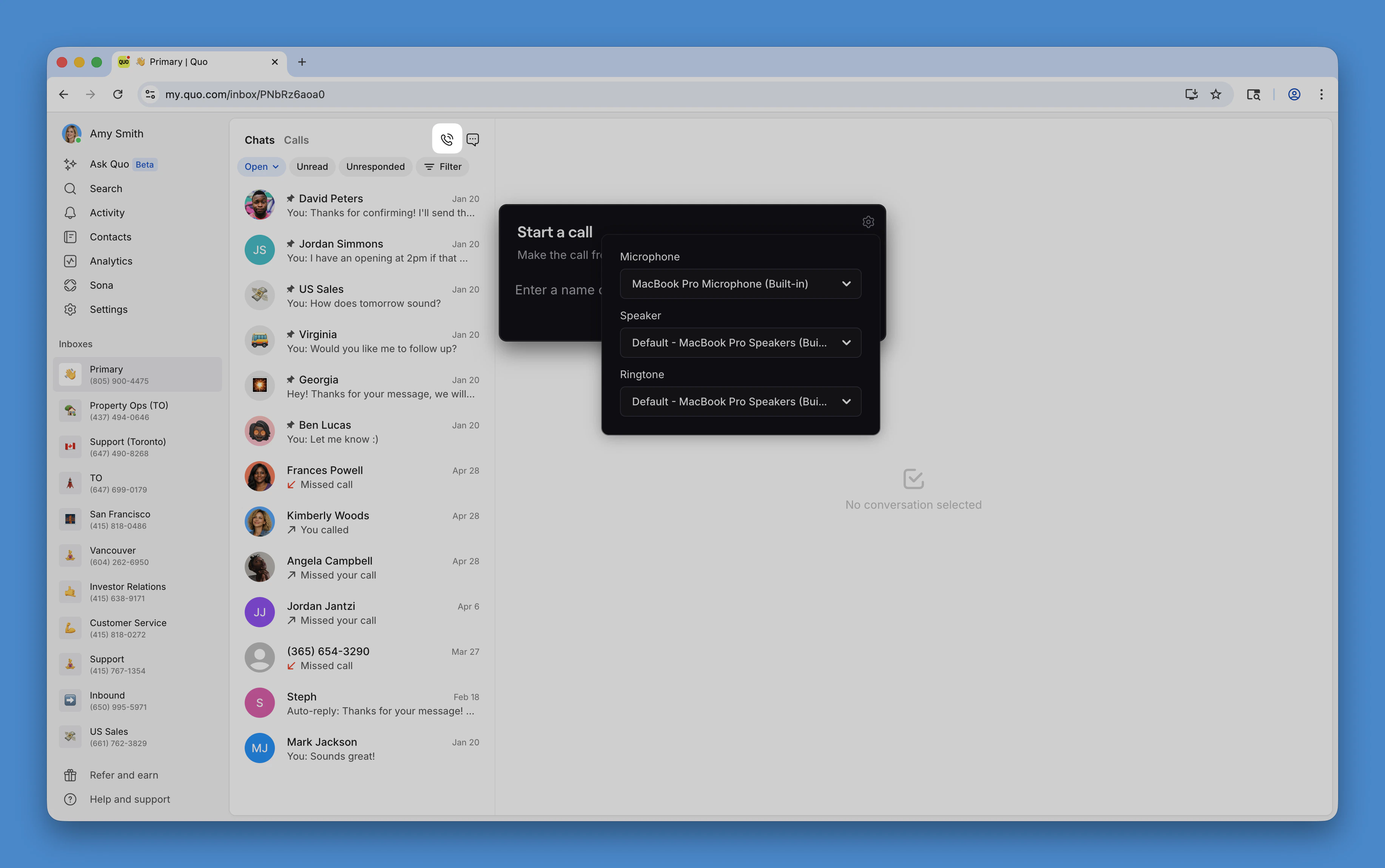 2. In the **Make a Call** modal, click the gear icon to access audio settings
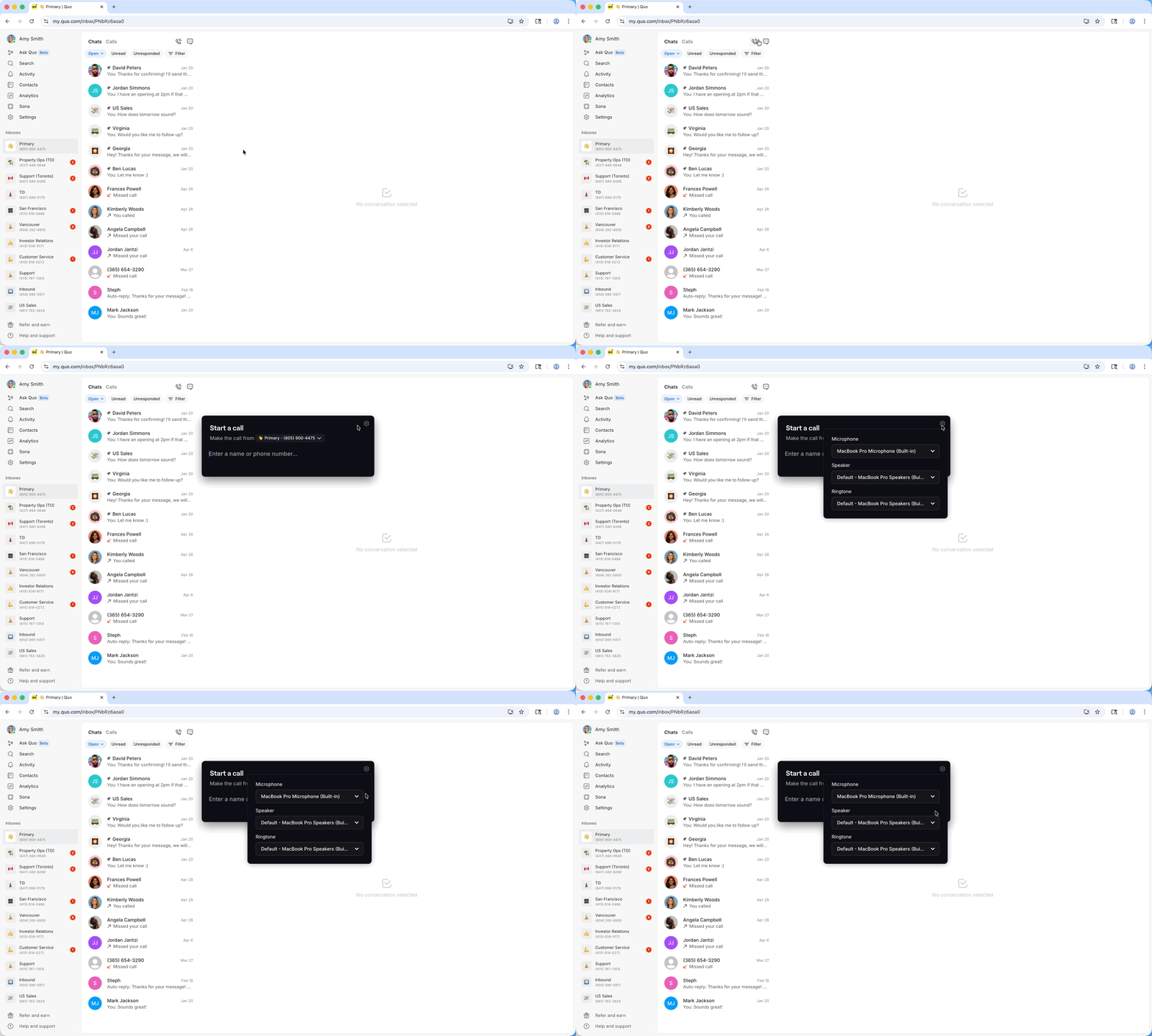 3. Select your preferred:
* **Microphone** input device
* **Speaker** output device
* **Ringtone** output device
Audio settings on mobile devices use your system's default audio configuration. To change audio devices on mobile, adjust your device's system settings.
***
### Setting default audio devices
The default audio input/output follows your system's default settings. Here's how to change them:
1. Type "control panel" in the taskbar search box and open Control Panel
2. Click **Hardware and Sound**
3. Under **Sound**, click **Manage Audio Devices**
4. On the **Playback** tab, select your headset and click **Set Default**
5. On the **Recording** tab, select your headset and click **Set Default**
6. Click **OK** to save changes
1. Open **System Preferences**
2. Click the **Sound** icon
3. Click the **Input** tab and select your headset
4. Click the **Output** tab and select your headset
***
## Ringtone customization
Personalize your incoming call alerts with custom ringtones that suit your style and help you identify Quo calls.
### Available options by platform
The web and desktop apps use a native ringtone. To preview it:
1. Go to **Settings → Audio settings**
2. Click **Test audio** next to the Ringtone dropdown
Choose from three default ringtones or upload your own custom ringtone for a personalized experience.
1. Open the Quo app
2. Tap your **Profile Photo** → **Settings**
3. Tap **Phone Numbers**
4. Select the phone number you want to change the ringtone for
5. Choose from: Default iPhone ringtone, Quo presets, or upload a new one using the **Plus +**
Use any ringtone on your device by enabling **Notification Categories** in your Android settings. This gives you full flexibility to use system ringtones or custom audio files.
1. Open the Quo app
2. Tap your **Profile Photo** → **Settings**
3. Tap **Phone Numbers**
4. Tap **Notifications → System settings**
5. Under Calls, tap **Incoming → Sound**
6. Choose a new ringtone
***
## Appearance settings
### Theme selection
Quo offers both light and dark modes to reduce eye strain and match your preference. By default, Quo follows your computer's system settings.
To manually set your theme:
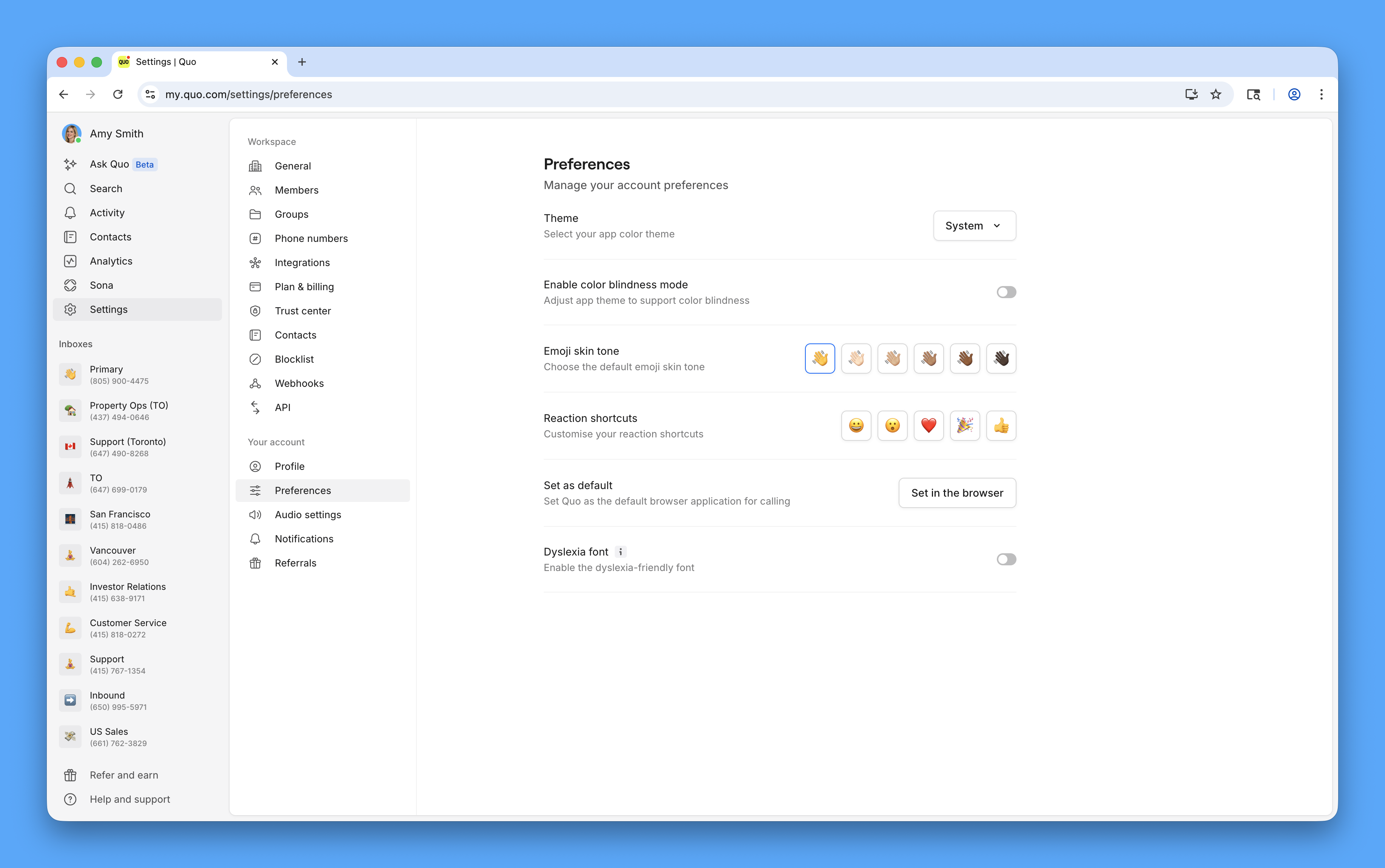
1. Navigate to [Settings](https://my.quo.com/settings) from the left menu
2. Under "Your account", select [Preferences](https://my.quo.com/settings/preferences)
3. Click the dropdown next to "Theme" to choose:
* **Light mode**: Bright interface ideal for well-lit environments
* **Dark mode**: Reduced eye strain in low-light conditions
* **System default**: Automatically matches your device's theme
3. Select your preferred:
* **Microphone** input device
* **Speaker** output device
* **Ringtone** output device
Audio settings on mobile devices use your system's default audio configuration. To change audio devices on mobile, adjust your device's system settings.
***
### Setting default audio devices
The default audio input/output follows your system's default settings. Here's how to change them:
1. Type "control panel" in the taskbar search box and open Control Panel
2. Click **Hardware and Sound**
3. Under **Sound**, click **Manage Audio Devices**
4. On the **Playback** tab, select your headset and click **Set Default**
5. On the **Recording** tab, select your headset and click **Set Default**
6. Click **OK** to save changes
1. Open **System Preferences**
2. Click the **Sound** icon
3. Click the **Input** tab and select your headset
4. Click the **Output** tab and select your headset
***
## Ringtone customization
Personalize your incoming call alerts with custom ringtones that suit your style and help you identify Quo calls.
### Available options by platform
The web and desktop apps use a native ringtone. To preview it:
1. Go to **Settings → Audio settings**
2. Click **Test audio** next to the Ringtone dropdown
Choose from three default ringtones or upload your own custom ringtone for a personalized experience.
1. Open the Quo app
2. Tap your **Profile Photo** → **Settings**
3. Tap **Phone Numbers**
4. Select the phone number you want to change the ringtone for
5. Choose from: Default iPhone ringtone, Quo presets, or upload a new one using the **Plus +**
Use any ringtone on your device by enabling **Notification Categories** in your Android settings. This gives you full flexibility to use system ringtones or custom audio files.
1. Open the Quo app
2. Tap your **Profile Photo** → **Settings**
3. Tap **Phone Numbers**
4. Tap **Notifications → System settings**
5. Under Calls, tap **Incoming → Sound**
6. Choose a new ringtone
***
## Appearance settings
### Theme selection
Quo offers both light and dark modes to reduce eye strain and match your preference. By default, Quo follows your computer's system settings.
To manually set your theme:
1. Navigate to [Settings](https://my.quo.com/settings) from the left menu
2. Under "Your account", select [Preferences](https://my.quo.com/settings/preferences)
3. Click the dropdown next to "Theme" to choose:
* **Light mode**: Bright interface ideal for well-lit environments
* **Dark mode**: Reduced eye strain in low-light conditions
* **System default**: Automatically matches your device's theme
 ***
## FAQs
The web and desktop versions use a standard ringtone for consistency across browsers. For custom ringtones, use the mobile app where you have more flexibility with system integration.
Theme preferences sync across all devices logged into your account. Audio settings are device-specific since they depend on the hardware connected to each device.
Audio echo usually occurs when your microphone picks up sound from your speakers. Try using headphones, reducing speaker volume, or moving your microphone farther from speakers. In audio settings, ensure you've selected the correct devices for input and output.
***
## FAQs
The web and desktop versions use a standard ringtone for consistency across browsers. For custom ringtones, use the mobile app where you have more flexibility with system integration.
Theme preferences sync across all devices logged into your account. Audio settings are device-specific since they depend on the hardware connected to each device.
Audio echo usually occurs when your microphone picks up sound from your speakers. Try using headphones, reducing speaker volume, or moving your microphone farther from speakers. In audio settings, ensure you've selected the correct devices for input and output.