> ## Documentation Index
> Fetch the complete documentation index at: https://support.quo.com/llms.txt
> Use this file to discover all available pages before exploring further.
# Manage notification settings
> Control how and when you receive Quo, formerly OpenPhone, notifications
## Overview
Take control of your Quo notifications to maintain focus when you need it and stay responsive when it matters. Customize notification settings at multiple levels - from your entire account to individual phone numbers.
## Watch our overview
## Setting Do Not Disturb
### How to turn on Do Not Disturb
1. Click your profile icon in the top left corner
2. Select 🌙 **Do not disturb**
3. Choose duration:
* 30 minutes
* 1 hour
* 8 hours
* Tomorrow
* Until further notice
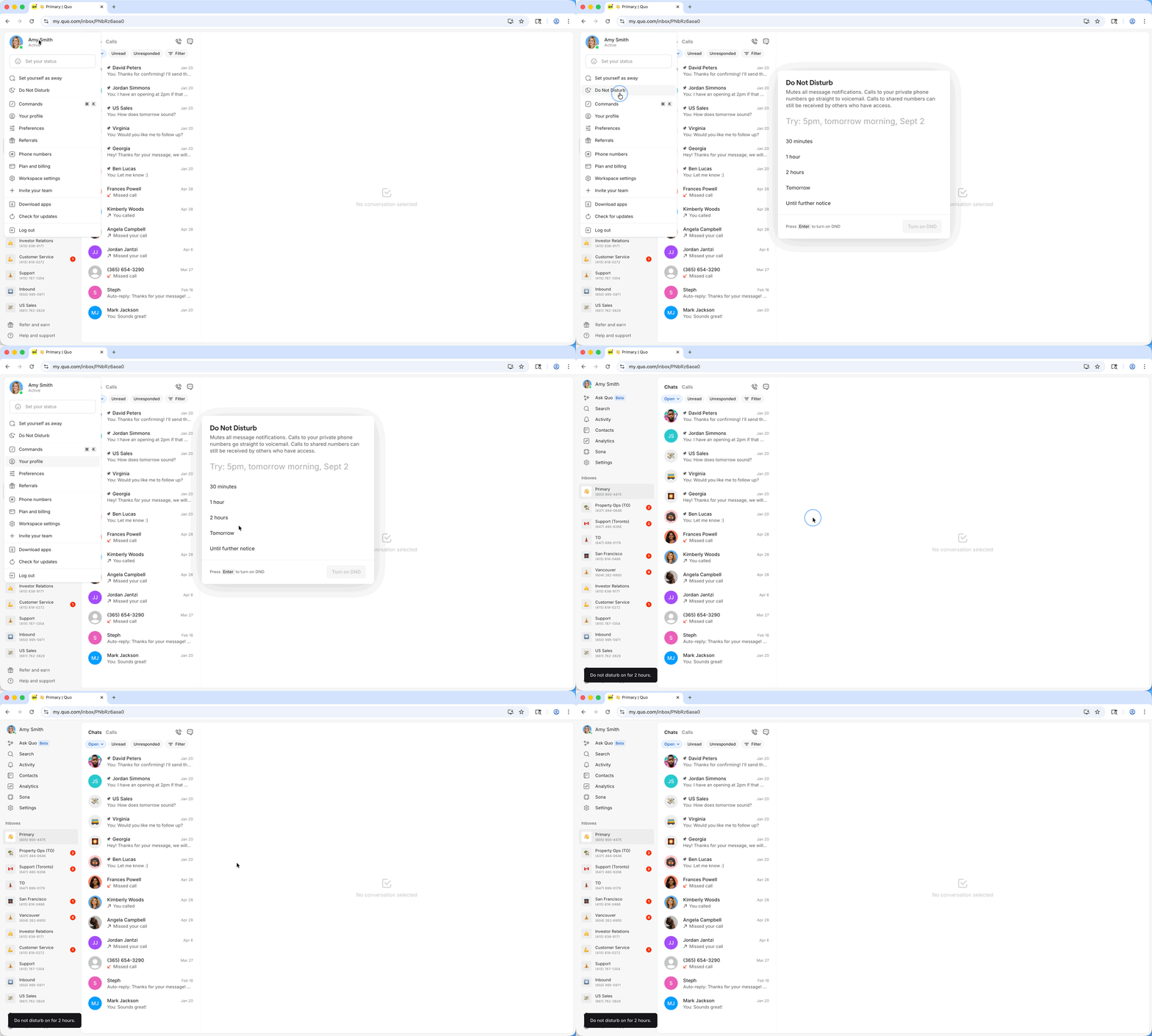 To turn off: Click your profile again → 🌙 **Turn off Do not disturb**
1. Tap your profile icon in the top left corner
2. Next to "Do not disturb", tap **Off**
3. Select duration:
* 30 minutes
* 1 hour
* 8 hours
* 24 hours
* Until further notice
To turn off: Click your profile again → 🌙 **Turn off Do not disturb**
1. Tap your profile icon in the top left corner
2. Next to "Do not disturb", tap **Off**
3. Select duration:
* 30 minutes
* 1 hour
* 8 hours
* 24 hours
* Until further notice
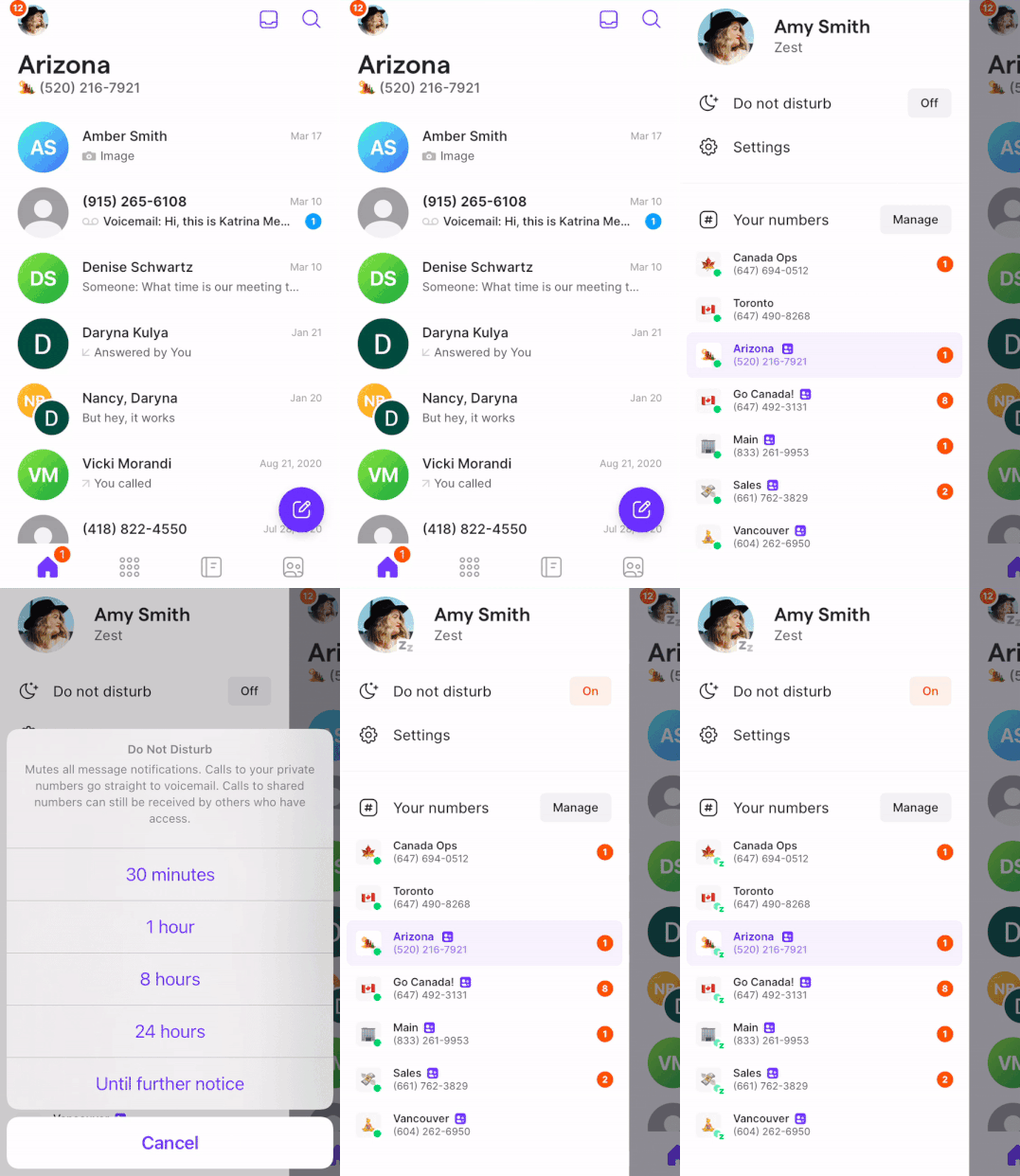 To turn off: Tap **On** → Select **Turn Off**
### Team impact
* Personal Do Not Disturb only affects your individual availability
* For shared numbers, other team members can still receive calls
* Each team member controls their own Do Not Disturb settings
Want Do Not Disturb on a schedule? Set up your [business hours](https://support.quo.com/core-concepts/administration/call-flows/business-hours) for automatic availability management.
### Watch a demo
Learn more about managing Quo notifications in this video:
## Phone number muting
Need to focus on specific numbers? Mute individual phone numbers to stop notifications while maintaining access for outgoing calls and texts.
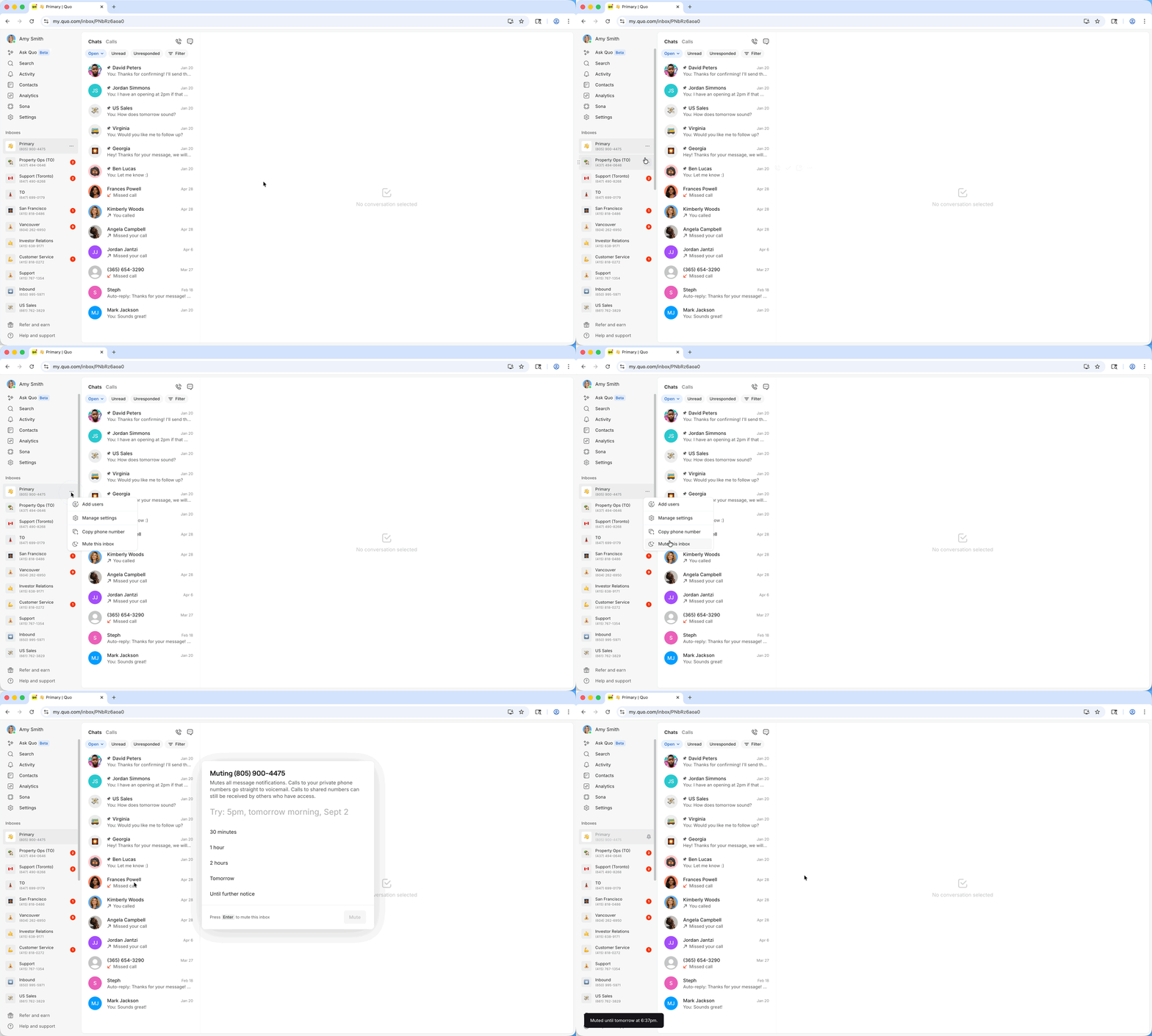
### How to mute phone numbers
1. Locate the phone number in your left sidebar
2. Hover over the number and click **...**
3. Select 🌙 **Mute**
4. Choose mute duration
To turn off: Tap **On** → Select **Turn Off**
### Team impact
* Personal Do Not Disturb only affects your individual availability
* For shared numbers, other team members can still receive calls
* Each team member controls their own Do Not Disturb settings
Want Do Not Disturb on a schedule? Set up your [business hours](https://support.quo.com/core-concepts/administration/call-flows/business-hours) for automatic availability management.
### Watch a demo
Learn more about managing Quo notifications in this video:
## Phone number muting
Need to focus on specific numbers? Mute individual phone numbers to stop notifications while maintaining access for outgoing calls and texts.
### How to mute phone numbers
1. Locate the phone number in your left sidebar
2. Hover over the number and click **...**
3. Select 🌙 **Mute**
4. Choose mute duration
 ### How to mute phone numbers on iOS
1. Tap your account icon (top left)
2. Click **Manage** next to "Your numbers"
### How to mute phone numbers on iOS
1. Tap your account icon (top left)
2. Click **Manage** next to "Your numbers"
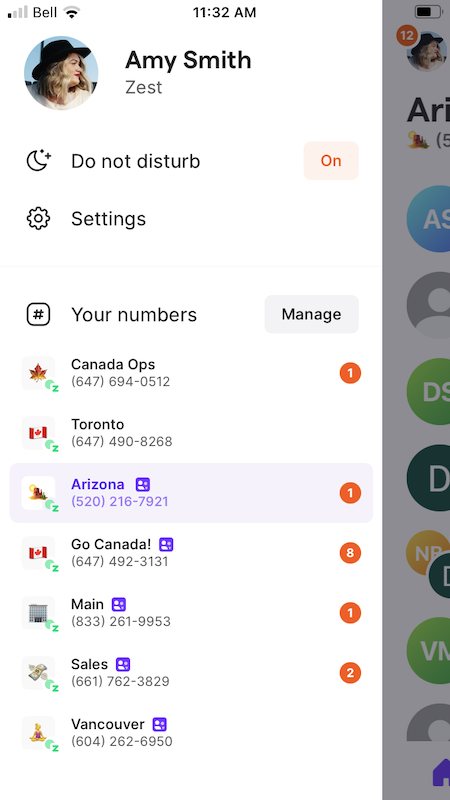 3. Tap **Off** next to "Mute phone number"
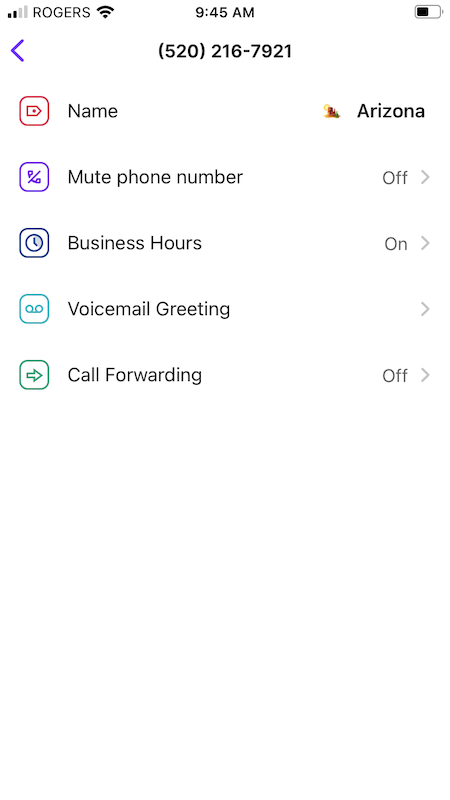 4. Select mute duration
### How to mute phone numbers on Android
1. Tap your profile icon in the top-left corner
2. Select "\*\*Settings" \*\*
3. Choose "**Phone Numbers"**
4. Tap the phone number you’d like to mute
5. Select, "**Mute Phone Number**"
### How to unmute phone numbers
Numbers automatically unmute when the duration expires, but you can unmute early:
1. Hover over the muted number
2. Click **...**
3. Select 🌙 **Unmute**
1. Tap your account icon
2. Select **Manage** → Choose the number
3. Select **Mute phone numbers**
4. Choose **Turn off**
## Silent notifications
Stay aware of activity without disruption by enabling silent notifications during off-hours or Do Not Disturb periods.
### How to enable silent notifications
1. Navigate to **Settings** in the left menu
2. Choose **Notifications** under "Your account"
3. Configure these options:
4. Select mute duration
### How to mute phone numbers on Android
1. Tap your profile icon in the top-left corner
2. Select "\*\*Settings" \*\*
3. Choose "**Phone Numbers"**
4. Tap the phone number you’d like to mute
5. Select, "**Mute Phone Number**"
### How to unmute phone numbers
Numbers automatically unmute when the duration expires, but you can unmute early:
1. Hover over the muted number
2. Click **...**
3. Select 🌙 **Unmute**
1. Tap your account icon
2. Select **Manage** → Choose the number
3. Select **Mute phone numbers**
4. Choose **Turn off**
## Silent notifications
Stay aware of activity without disruption by enabling silent notifications during off-hours or Do Not Disturb periods.
### How to enable silent notifications
1. Navigate to **Settings** in the left menu
2. Choose **Notifications** under "Your account"
3. Configure these options:
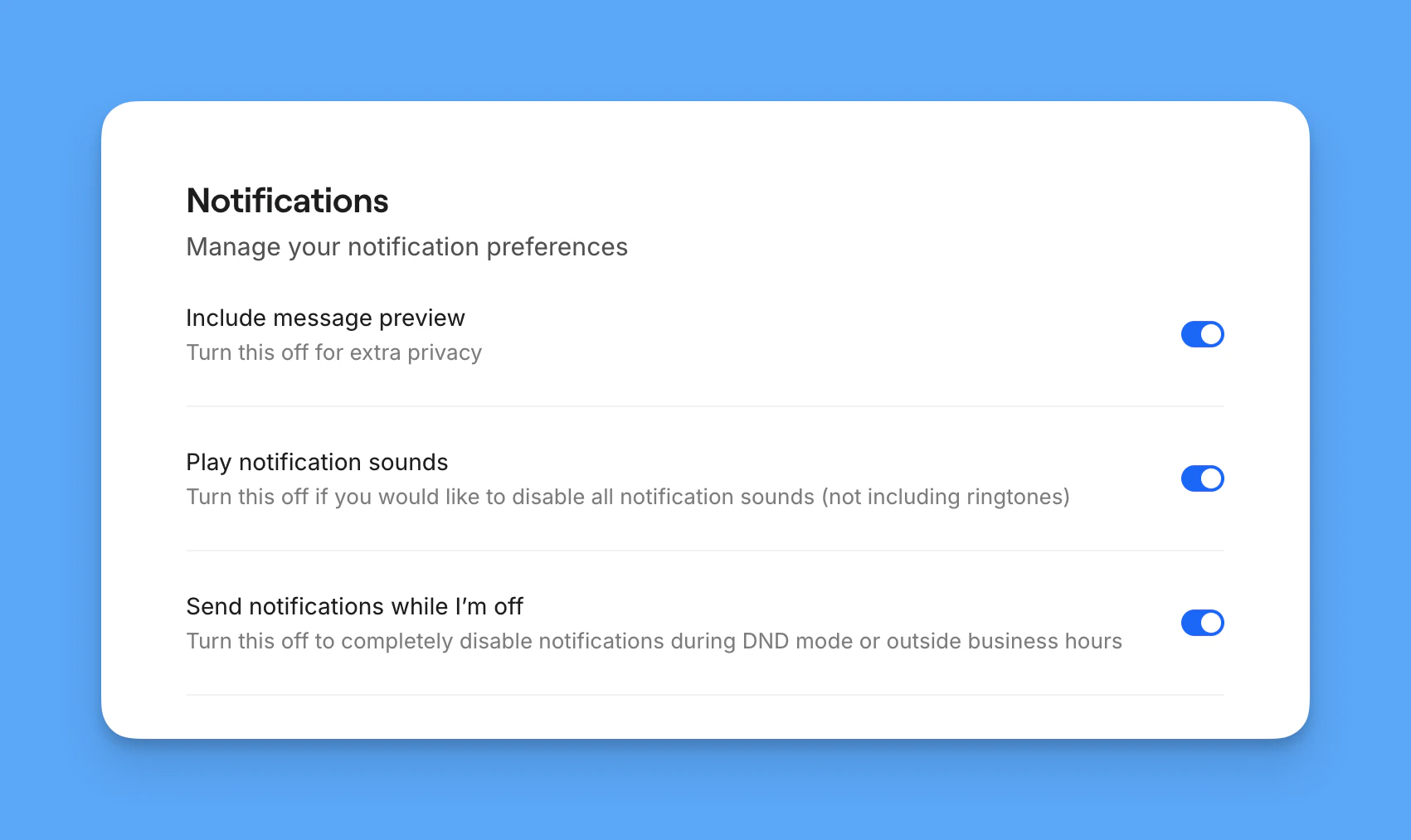 **Send notifications while I'm off**:
* **On**: Receive silent notifications during Do Not Disturb or outside business hours
* **Off**: No notifications when unavailable
**Include message preview**:
* **On**: See message content in notifications
* **Off**: Only see "New Message" or "New Voicemail"
If you've muted a specific number, it overrides these settings - you won't receive any notifications for that number.
## Device notification settings
Sometimes notification issues stem from your device's system settings rather than Quo. Here's how to check:
### iOS Do Not Disturb settings
1. Swipe down from top-right (iPhone X+) or up from bottom (iPhone 8 and earlier)
2. Tap the crescent moon icon to toggle Do Not Disturb
1. Open Settings
2. Tap **Do Not Disturb**
3. Toggle the switch off
### Android Do Not Disturb settings
1. Swipe down from the top of the screen
2. Look for the Do Not Disturb icon (circle with line or moon)
3. Tap to turn off
1. Open Settings
2. Tap **Sound** (or **Sounds and vibration**)
3. Tap **Do Not Disturb**
4. Toggle off the switch
### Focus Mode (iOS and Android)
Focus Mode can also block Quo notifications. Here's how to check:
**Control Center:**
1. Swipe down from top-right (iPhone X+) or up from bottom
2. Tap the Focus button (moon icon) to see active modes
3. Tap any active Focus mode to turn it off
**Settings:**
1. Open Settings → **Focus**
2. Select the active Focus mode
3. Toggle off the Focus switch
**Quick Settings:**
1. Swipe down from the top
2. Look for Focus Mode icon
3. Tap to turn off
**Settings:**
1. Open Settings → **Digital Wellbeing & Parental Controls**
2. Tap **Focus Mode**
3. Tap **Turn Off Now**
After adjusting device settings, ensure you haven't muted the phone number in Quo itself.
## FAQs
Do Not Disturb affects all your Quo numbers and sends calls to voicemail. Muting is number-specific and blocks all notifications for that number only. You can use both features together for maximum control.
Quo's silent notifications respect your device's system Do Not Disturb settings. If your device's Do Not Disturb is on, you may not receive Quo notifications even with silent notifications enabled in the app.
Your Do Not Disturb status isn't directly visible to teammates, but they may notice if shared calls aren't being answered by you. Consider setting a custom status to communicate your availability.
**Send notifications while I'm off**:
* **On**: Receive silent notifications during Do Not Disturb or outside business hours
* **Off**: No notifications when unavailable
**Include message preview**:
* **On**: See message content in notifications
* **Off**: Only see "New Message" or "New Voicemail"
If you've muted a specific number, it overrides these settings - you won't receive any notifications for that number.
## Device notification settings
Sometimes notification issues stem from your device's system settings rather than Quo. Here's how to check:
### iOS Do Not Disturb settings
1. Swipe down from top-right (iPhone X+) or up from bottom (iPhone 8 and earlier)
2. Tap the crescent moon icon to toggle Do Not Disturb
1. Open Settings
2. Tap **Do Not Disturb**
3. Toggle the switch off
### Android Do Not Disturb settings
1. Swipe down from the top of the screen
2. Look for the Do Not Disturb icon (circle with line or moon)
3. Tap to turn off
1. Open Settings
2. Tap **Sound** (or **Sounds and vibration**)
3. Tap **Do Not Disturb**
4. Toggle off the switch
### Focus Mode (iOS and Android)
Focus Mode can also block Quo notifications. Here's how to check:
**Control Center:**
1. Swipe down from top-right (iPhone X+) or up from bottom
2. Tap the Focus button (moon icon) to see active modes
3. Tap any active Focus mode to turn it off
**Settings:**
1. Open Settings → **Focus**
2. Select the active Focus mode
3. Toggle off the Focus switch
**Quick Settings:**
1. Swipe down from the top
2. Look for Focus Mode icon
3. Tap to turn off
**Settings:**
1. Open Settings → **Digital Wellbeing & Parental Controls**
2. Tap **Focus Mode**
3. Tap **Turn Off Now**
After adjusting device settings, ensure you haven't muted the phone number in Quo itself.
## FAQs
Do Not Disturb affects all your Quo numbers and sends calls to voicemail. Muting is number-specific and blocks all notifications for that number only. You can use both features together for maximum control.
Quo's silent notifications respect your device's system Do Not Disturb settings. If your device's Do Not Disturb is on, you may not receive Quo notifications even with silent notifications enabled in the app.
Your Do Not Disturb status isn't directly visible to teammates, but they may notice if shared calls aren't being answered by you. Consider setting a custom status to communicate your availability.